Invite and Remove Collaborators
Important
To add collaborators to a WorkCenter, you need appropriate security permissions. To learn more about standard security permissions in Procorem, see Users, Roles, and Permissions.
Important
Guests cannot be upgraded to members. Add Collaborator on a WorkCenter allows you to add a new person as a guest, but there is no way to convert that guest to a member later. Decide before you add a user. If you know they need member-level access (typically internal users), add them as a member from the Members page first, then add them to their WorkCenters from there. See Member Administration and Guest Administration for more information.
Collaborating with colleagues, external partners, and clients is what brings Procorem to life. Collaborators can be either internal to your organization or external project participants.
With WorkCenter Roles, you are in charge of what collaborators can and cannot do within a particular WorkCenter. By controlling security on the WorkCenter level, there will never be any confusion on who has access to what information in your Procorem account.
Part of the mission of Procorem is to deliver true project transparency and auditability. With this goal in mind, Procorem does not offer folder level security as it can be burdensome to manage and often leaves organizations with a potential security risk. Only the people you invite to the WorkCenter have access to information within. If you do not want a user to have access to information in Procorem we recommend not inviting them to that WorkCenter at all. Instead, create a separate WorkCenter to store information for those users separately.
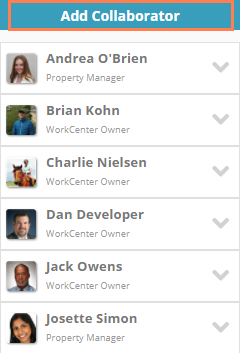
Navigate to the WorkCenter and click Add Collaborator in the top right side of the screen.
Start typing the name or email of the person to invite. You can add people who currently use Procorem and those who have not joined yet. If the person is an existing Procorem user, the name is displayed as you start typing (whether name or email).
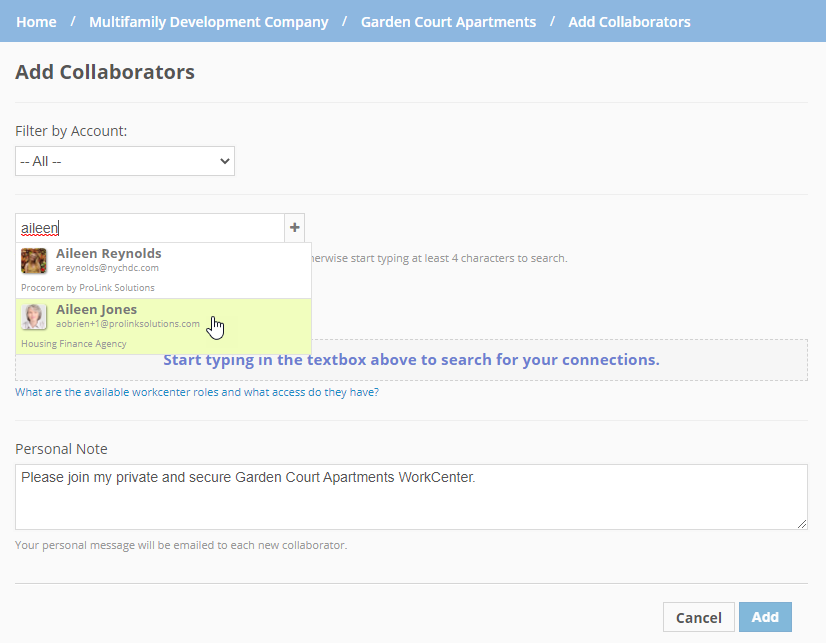
If the search does not result in a match in the list results, you need to add the person by clicking the "+" sign next to the name field. Then enter the email address for the invitation, and click Continue.
The system checks for the email address in Procorem.
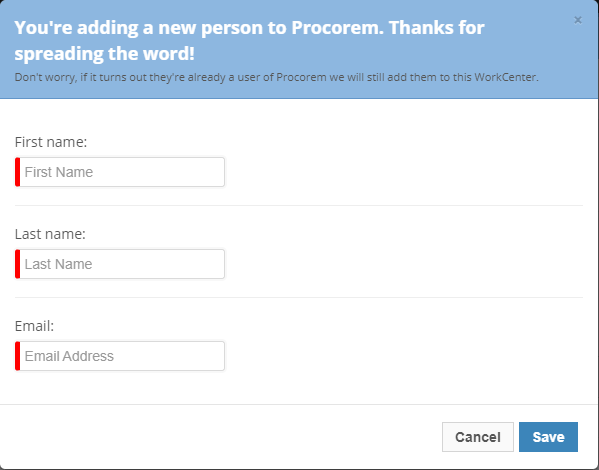
If the email address is not found, enter the user's first and last names.
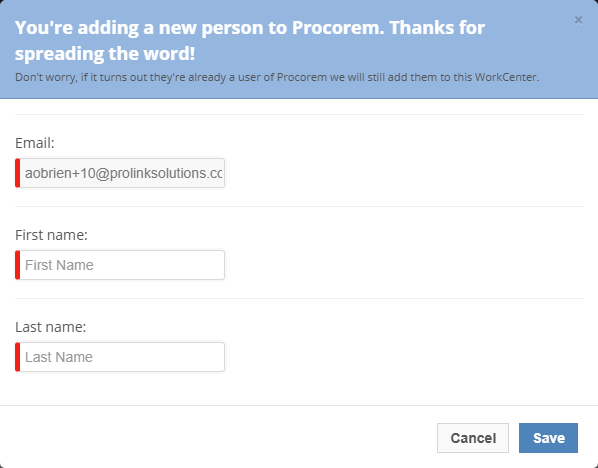
If the email address is found, the system shows the user's first and last names as read only.
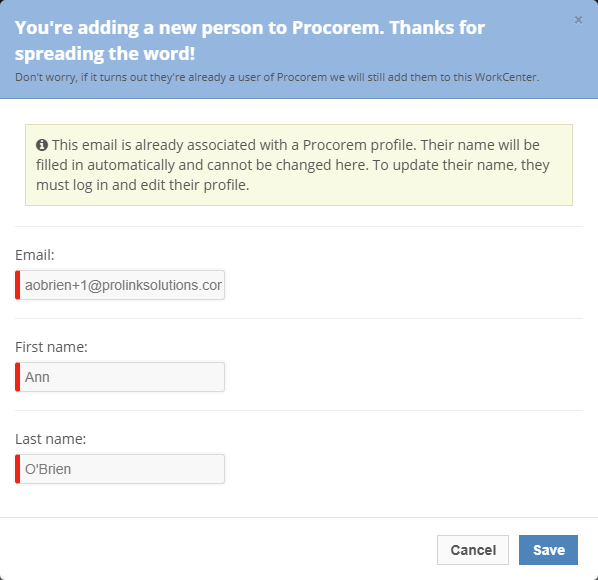
Click Save.
The system queues the user as a new collaborator (if the email address is not found) or as an existing profile (if the email address is found).
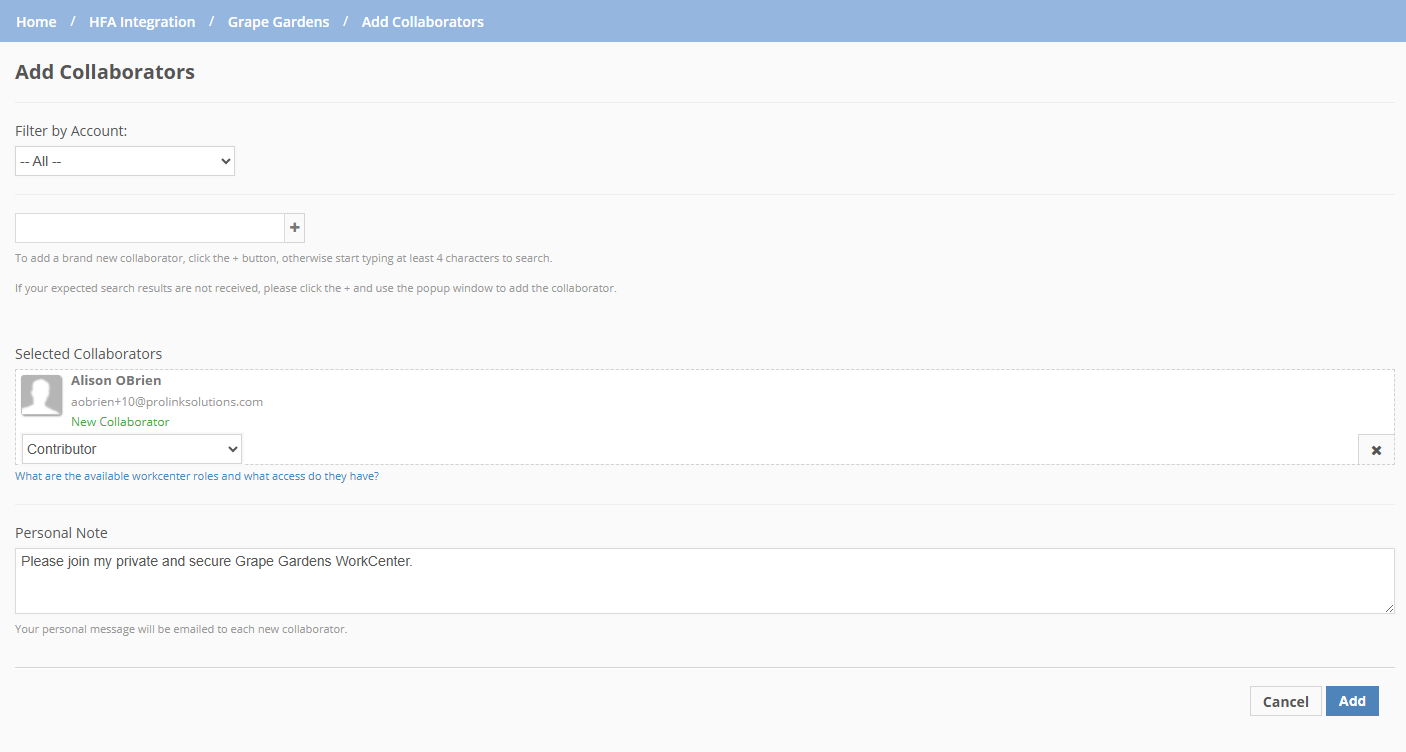
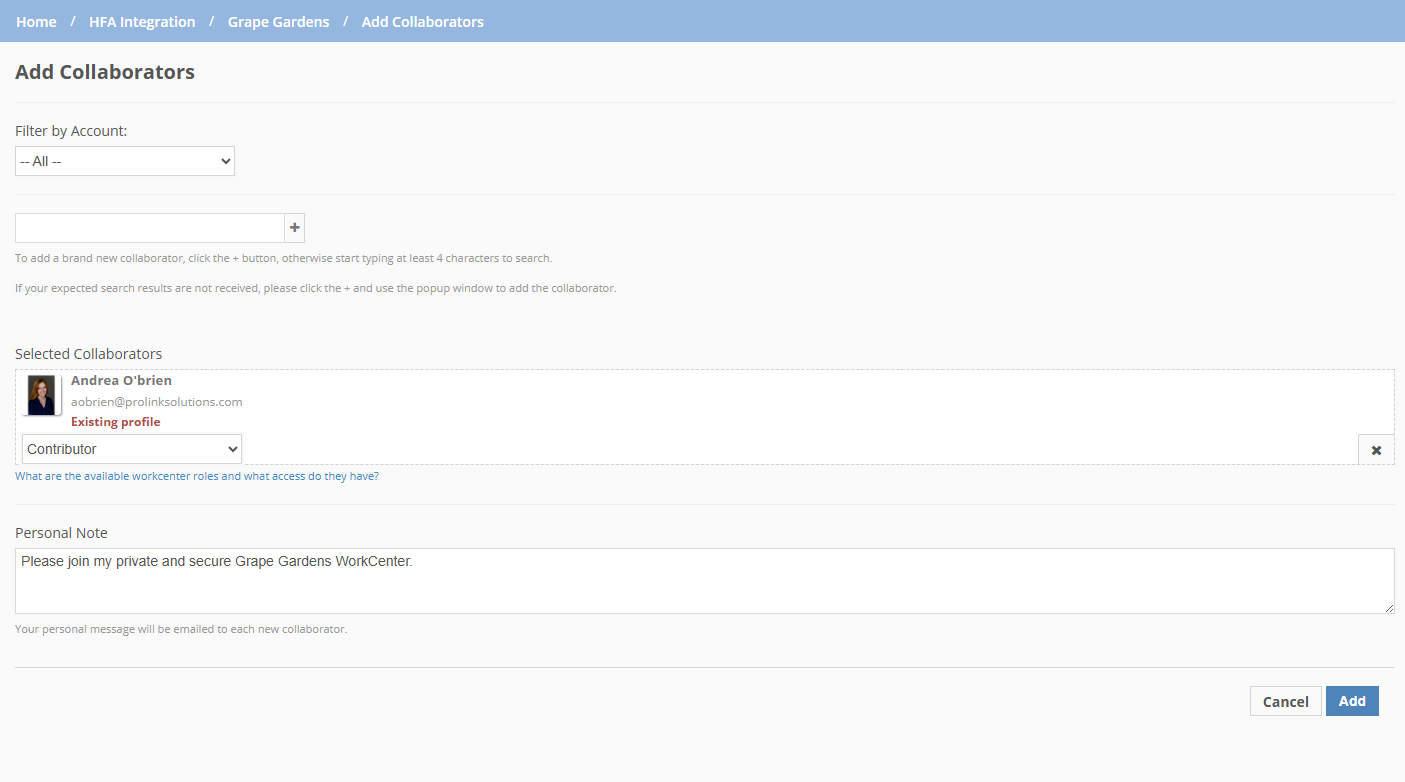
New Collaborator; Existing Profile
Add additional collaborators, if needed.
Optionally, enter a Personal Note to be included in the email invitation.
Click Add.
The first time you add someone to an account, they will be added as a guest. This means that they cannot be assigned WorkCenter Roles that have Member requirements associated with them.
Important
Guests cannot be upgraded to members. Add Collaborator on a WorkCenter allows you to add a new person as a guest, but there is no way to convert that guest to a member later. Decide before you add a user. If you know they need member-level access (typically internal users), add them as a member from the Members page first, then add them to their WorkCenters from there. See Member Administration and Guest Administration for more information.
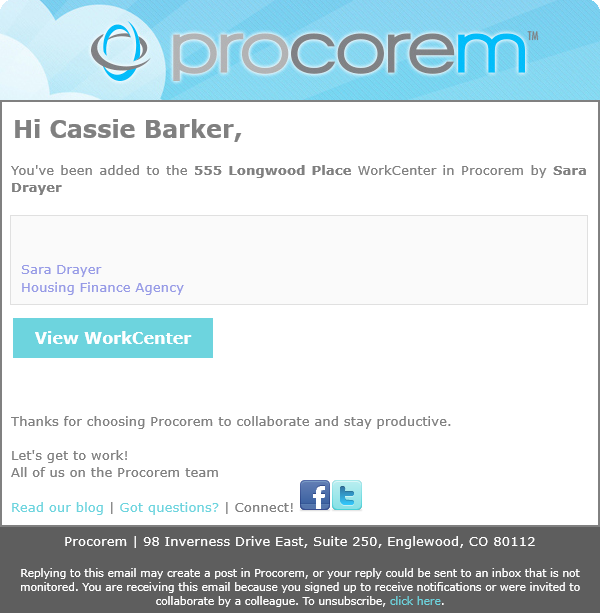
If someone you add as a collaborator has not accepted the invitation, you can resend the invitation. The process varies slightly depending on whether the person is already a Procorem user.
Navigate to the WorkCenter.
Click the down arrow to expand the details about the collaborator in the Collaborator panel.
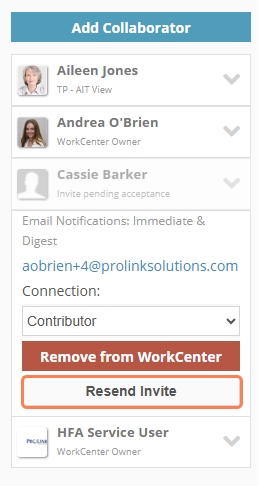
Click Resend Invite.
If the person has never logged into any Procorem account, you can have Procorem send another email or you can send the email manually.
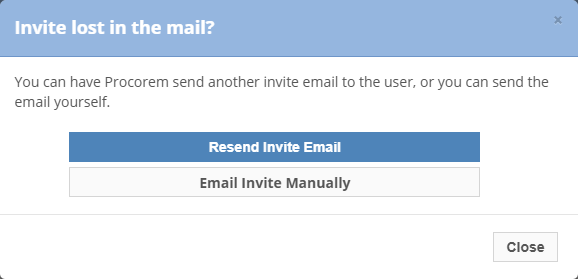
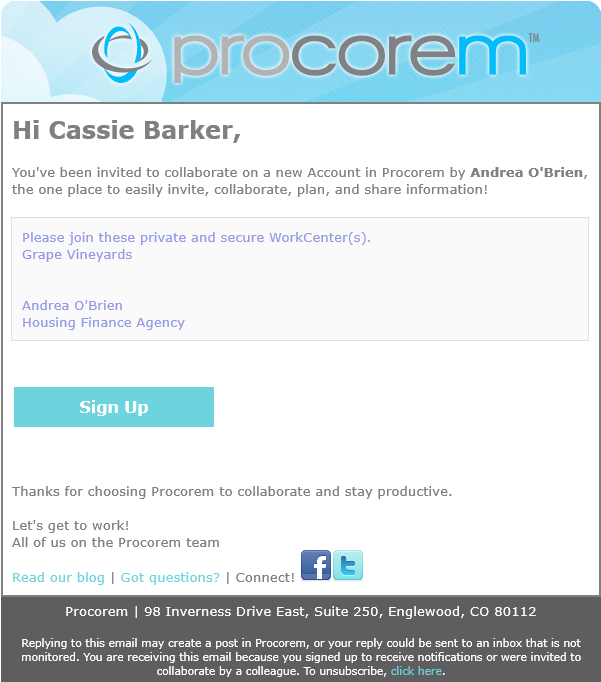
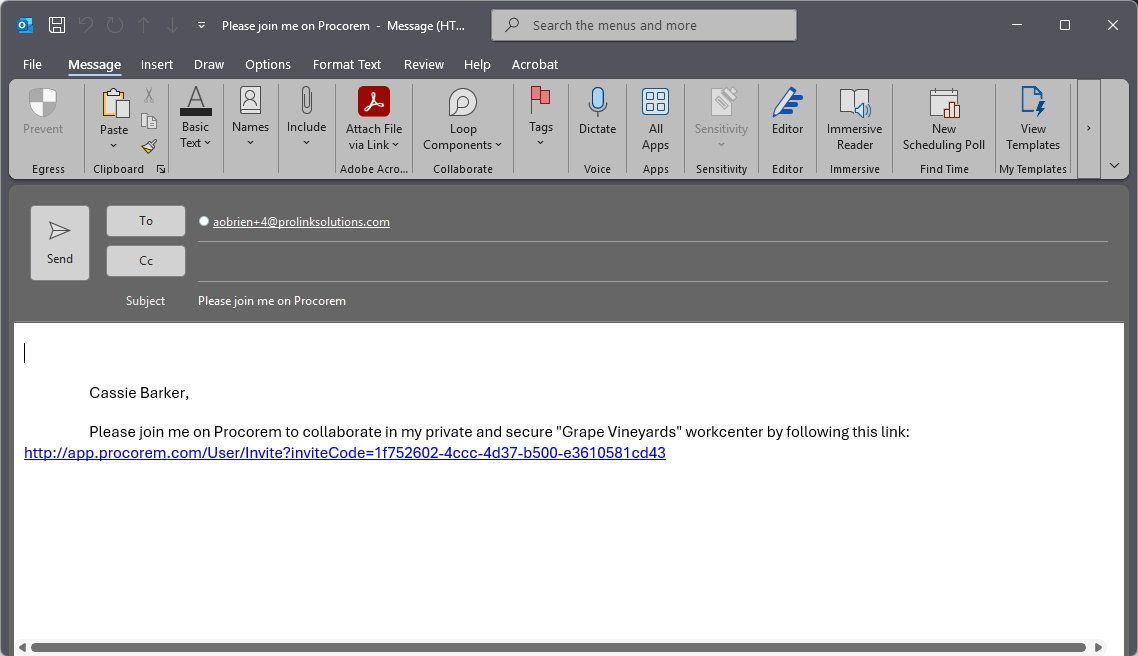
Popup opens when you click Resend Invite; System email; Manual email
OR
If the user has never logged into the Procorem account for this WorkCenter but they have logged into a different account, you can have Procorem send another email or you can send the email manually.
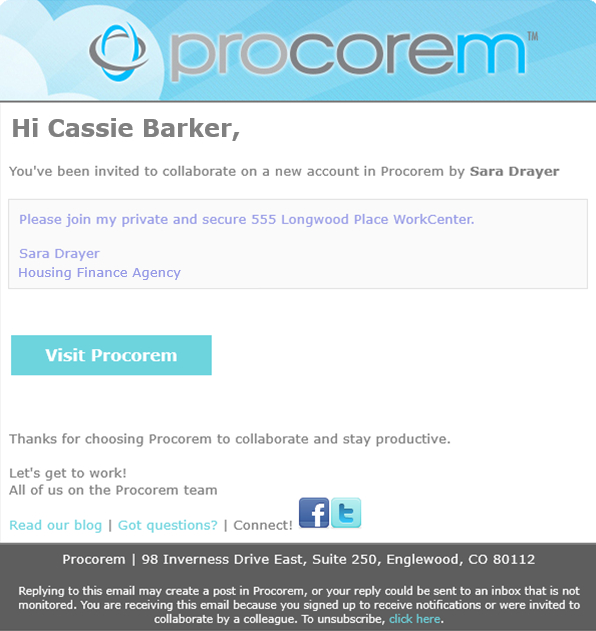
Popup opens when you click Resend Invite; System email; Manual email
OR
If the user has logged into the Procorem account but they have not accessed this particular WorkCenter, Procorem will send another email.
You must be a Member and the WorkCenter Owner to remove contributors from WorkCenter. WorkCenter Admins and Account Admins can also remove contributors from WorkCenters, even if they are not part of the WorkCenter itself. Go to the WorkCenter that has a member you want to remove. On the right side of your screen is a list of the participants in your WorkCenter; click the drop down arrow next to the appropriate person’s name.
Click Remove from WorkCenter, and then click OK. This person is now removed from the WorkCenter.
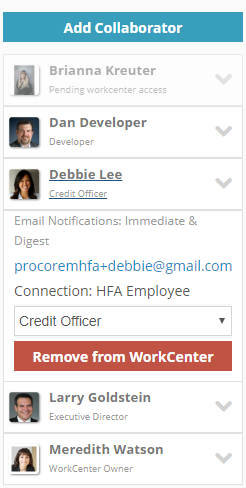
Removing a collaborator takes away his or her access to the WorkCenter. However, all activity performed in the WorkCenter is stored and maintained in the Activity Feed.
Often times if a person joins an organization, you will want to add them to multiple WorkCenters at the same time. Adding collaborators in bulk can be performed in the user's Work Items tab (Members and Guests administration).
Navigate to the account.
The Account Overview opens.
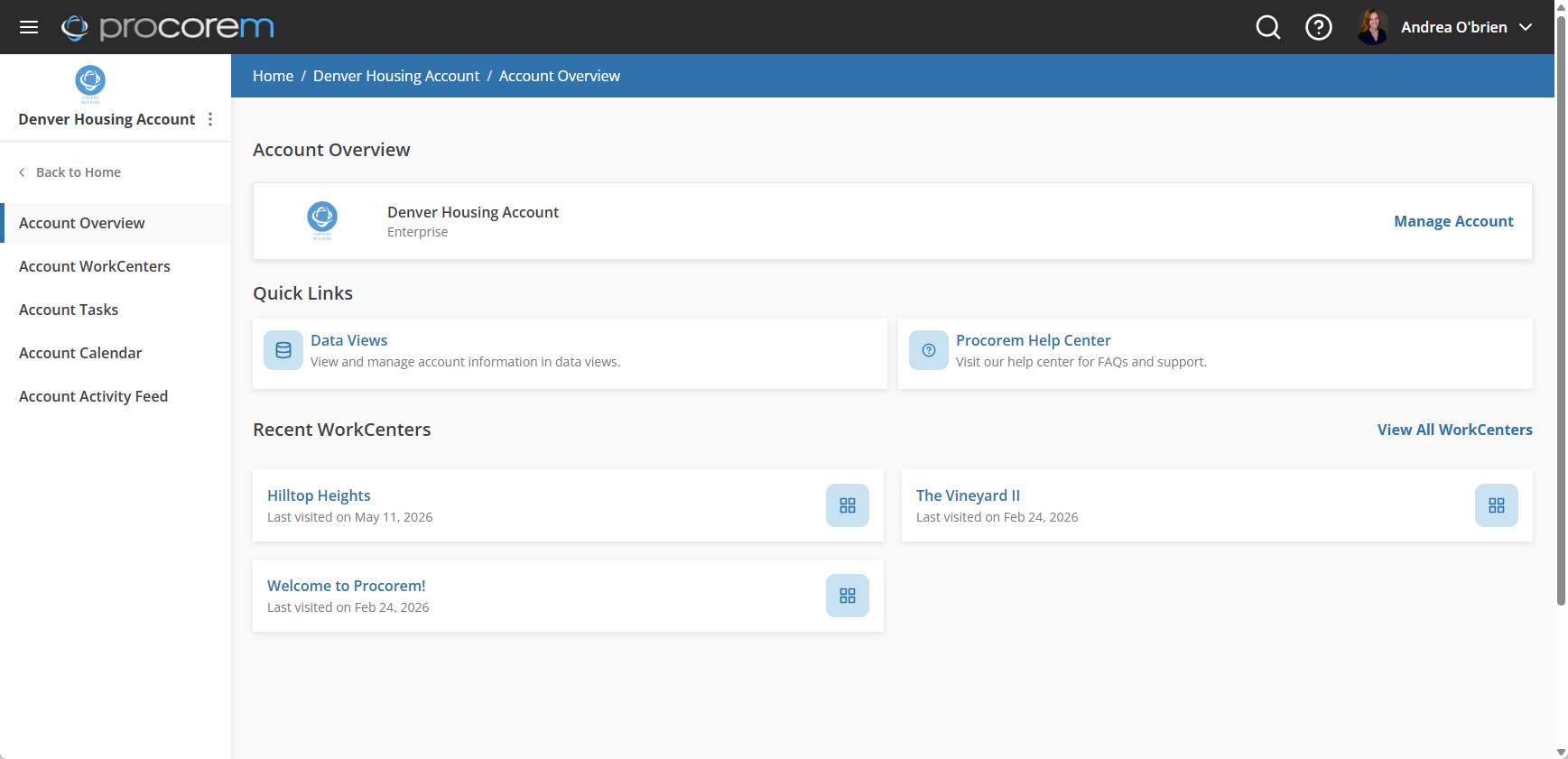
Click Manage Account.
The Account Settings page opens.

Select Members or Guests in the left navigation panel.
Open the user's record.
Select the Work Items tab.
Click Add to WorkCenters.
The Add to WorkCenters form opens.


Member page; Guest page
Select the WorkCenters and roles to add the member to.
Tip
You can select all of the WorkCenters on the page by selecting the checkbox in the header row. ProLink configures the maximum number of WorkCenters shown (500).
Optionally, enter a Personal note for the email notification.
Click Add Selected.
The user receives a single email listing every WorkCenter and role they were added to.
You can remove a collaborator from multiple WorkCenters at one time.
Navigate to the account.
The Account Overview opens.
Click Manage Account.
The Account Settings page opens.
Select Members or Guests in the left navigation panel.
Open the user's record.
Select the Work Items tab.
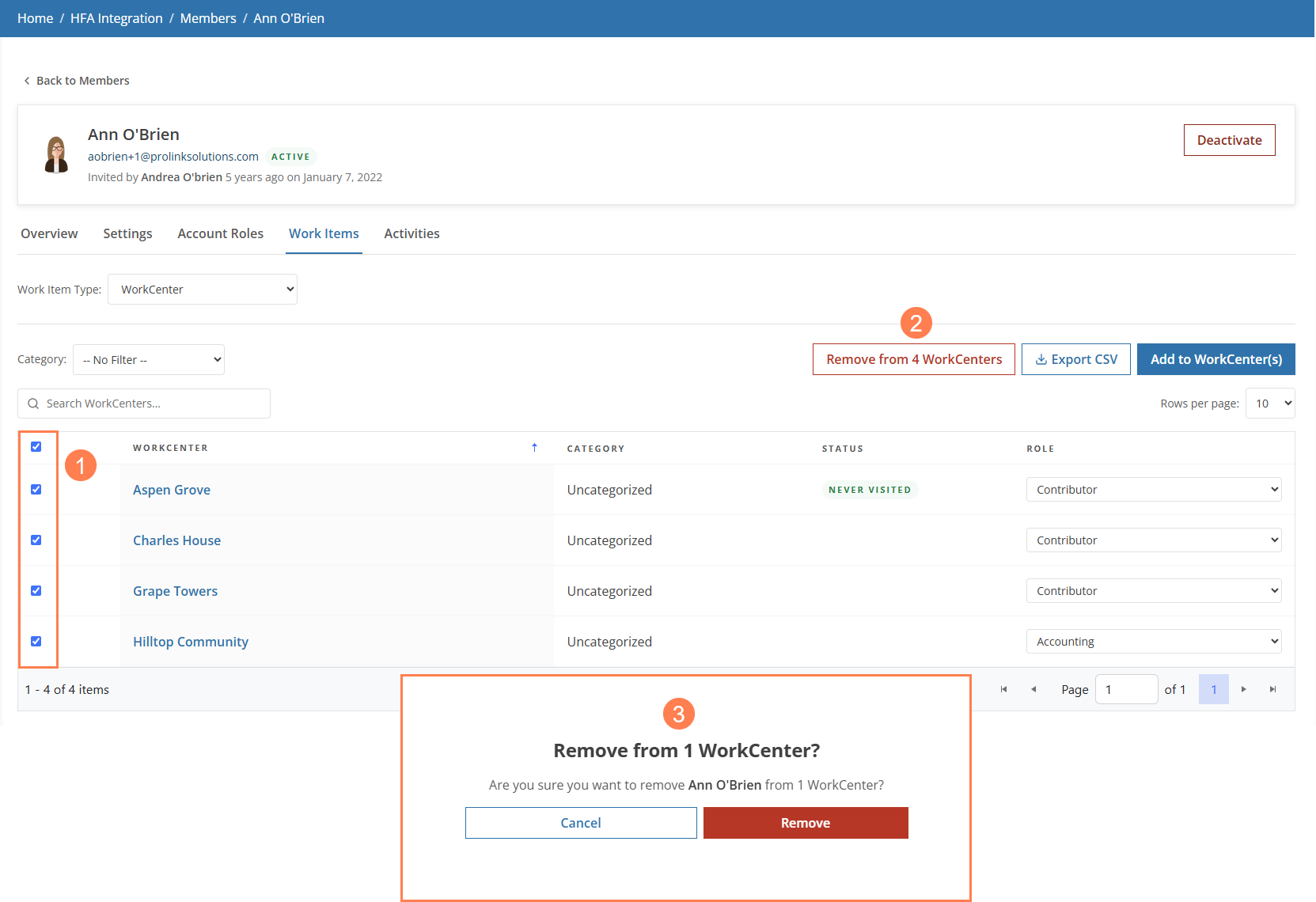
Select the checkbox(es) of the WorkCenters from which to remove the user.
Tip
You can select all of the WorkCenters shown on the page by selecting the checkbox in the header row. The maximum rows per page is 100.
Click Remove from [#] WorkCenters.
A popup opens.
Click Remove to confirm.