Inspection Template Administration
Important
The Manage Inspection Templates permission is required. Only members whose account role includes this permission can access the Inspection Templates admin area.
Inspection templates define the structure of every inspection conducted in Procorem Inspect. When an inspector opens an area, records a finding, and generates a report, everything they see—the items to evaluate, the categories and groups those items belong to, the defect classifications available, and the report types produced—comes from the template assigned to that inspection. As an account administrator, you build and maintain templates in the Admin section.
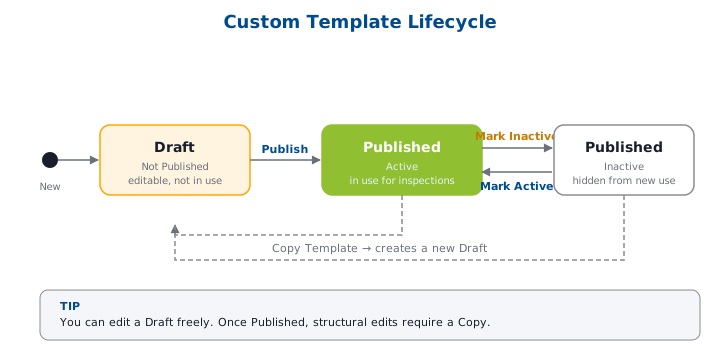
Templates start unpublished. All building and editing happens before you publish. Once published, inspection items are locked and cannot be added or removed. Publishing is permanent. There is no way to unpublish a template. To revise a published template, copy it and edit the copy. Active status controls availability. A published template must also be marked Active before it can be selected for new inspections. Marking a template Inactive removes it as an option for new inspections but does not affect inspections already using it.
To access inspection templates, go to your Account Overview and click Manage Account to access Account Settings. Then select Inspection Templates in the left navigation panel. The Inspection Templates list displays all templates defined for your account.
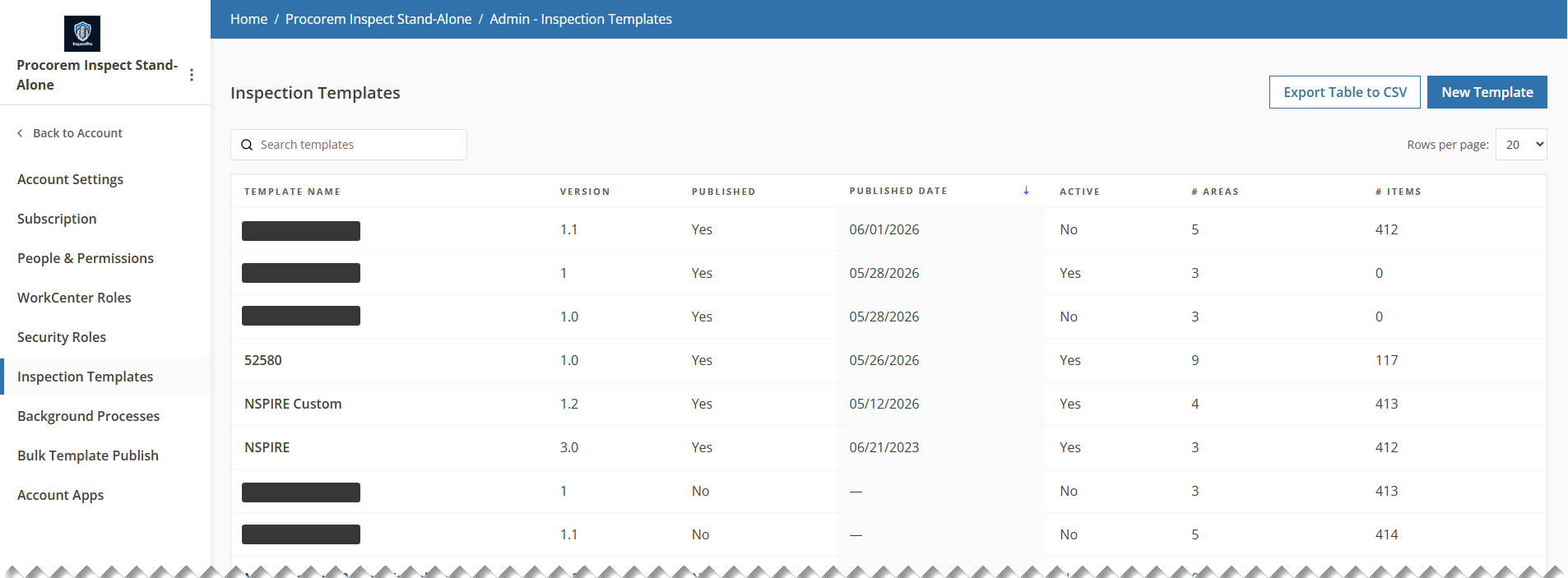
A default template is provided. When the Procorem Inspect module is enabled for your account, Procorem automatically creates a default NSPIRE inspection template. You can use it as-is or copy it as a starting point.
Template Overview
The Template Overview page is your hub for the template. Its content and available actions differ depending on whether the template is published.
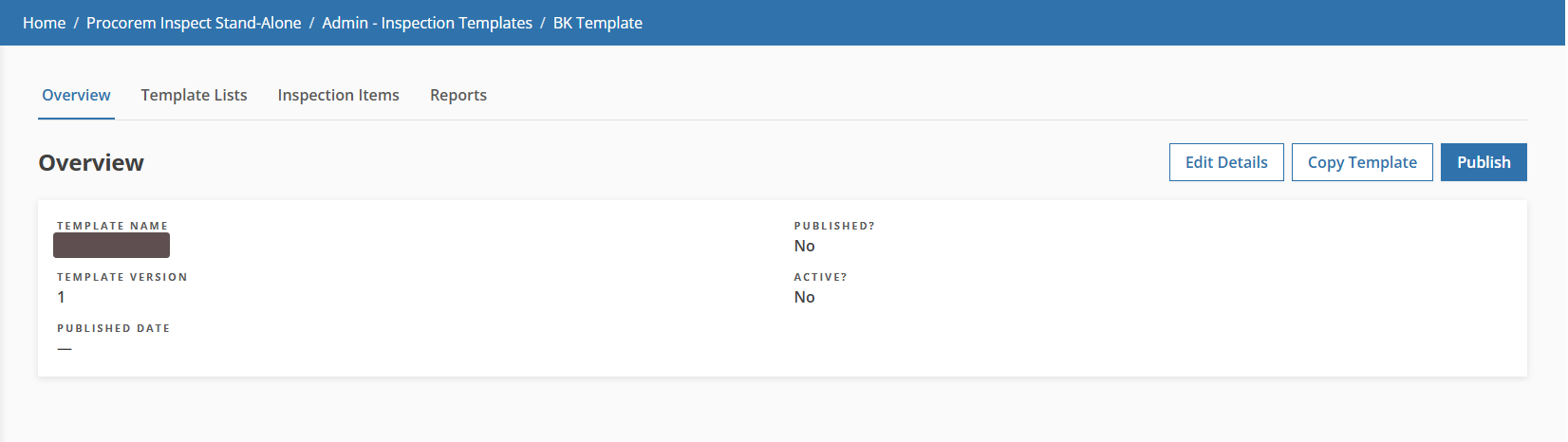
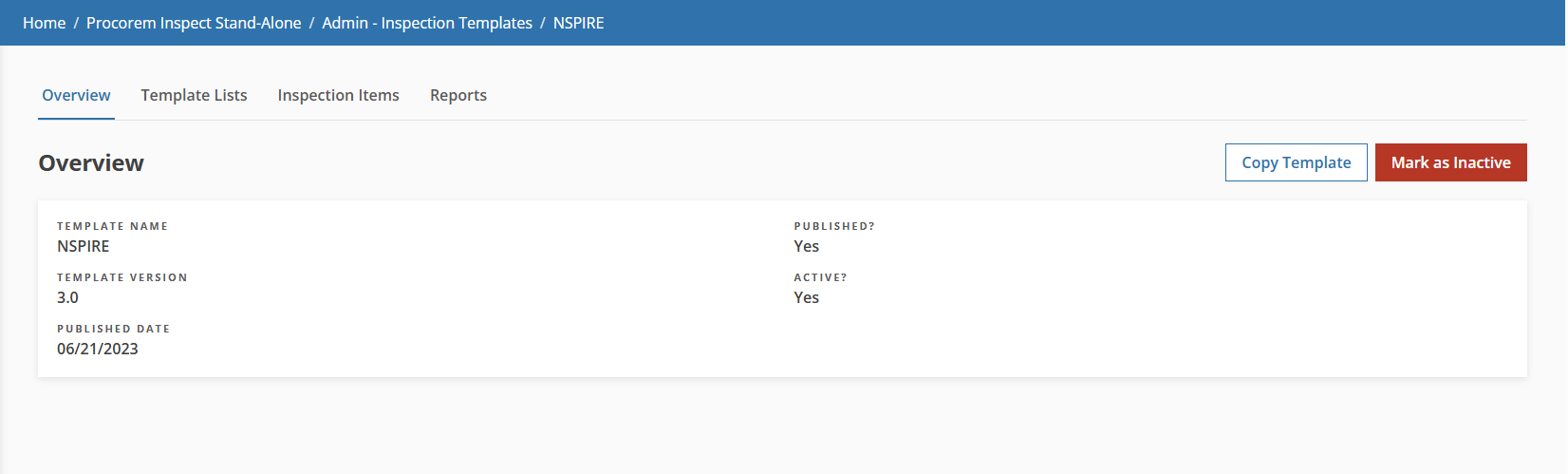
Before publishing; after publishing
New templates are created unpublished and inactive. All structural setup, including areas, categories, groups, classifications, and inspection items, is done before you publish.
Template Structure: The Building Blocks
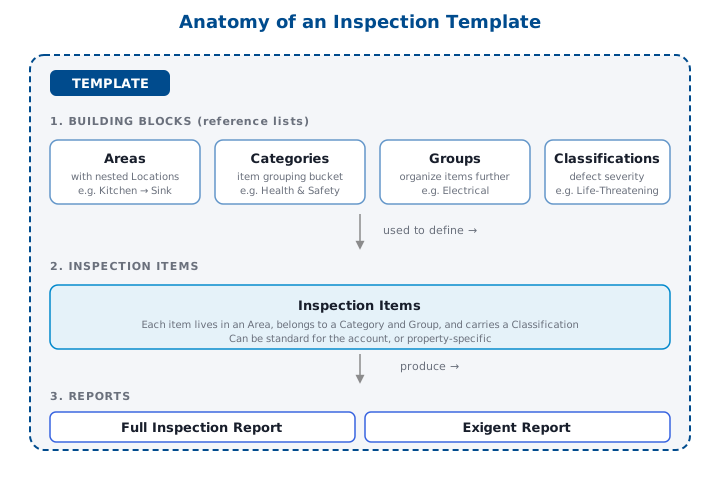
A template is built from four reference lists that combine to define inspection items
Areas—The physical or logical zones inspected (for example, Outside, Inside, Units). Each area can contain nested Locations (for example, Kitchen → Sink).
Categories—Broad groupings used to organize inspection items (for example, Health & Safety).
Groups—A finer level of organization within a category (for example, Electrical).
Classifications—Defect severity levels assigned to inspection items and findings (for example, Life-Threatening). Classifications flagged as **Is Critical** display in red in findings and appear in the Exigent Report.
Note
After a template is published, categories, groups, and classifications can still be renamed or reordered. Area names and sort orders can also be edited, but the Save button is hidden for areas linked to inspection items in a published template.
On the Inspection Templates list page, click New Template.
The New Inspection Template popup opens.
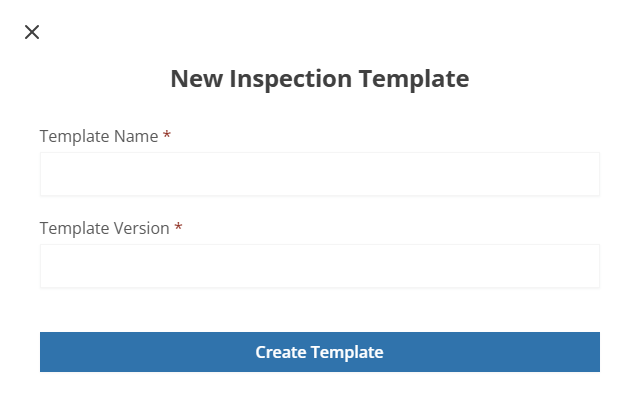
Enter the Template Name, up to 200 characters.
Enter the Template Version, up to 50 characters, free-text format.
Note
The Template Name and Version combination must be unique within your account.
Click Create Template.
The Template Overview page opens for the new (unpublished template).
On the Template Overview page, select the Template Lists tab, then the Areas sub-tab.
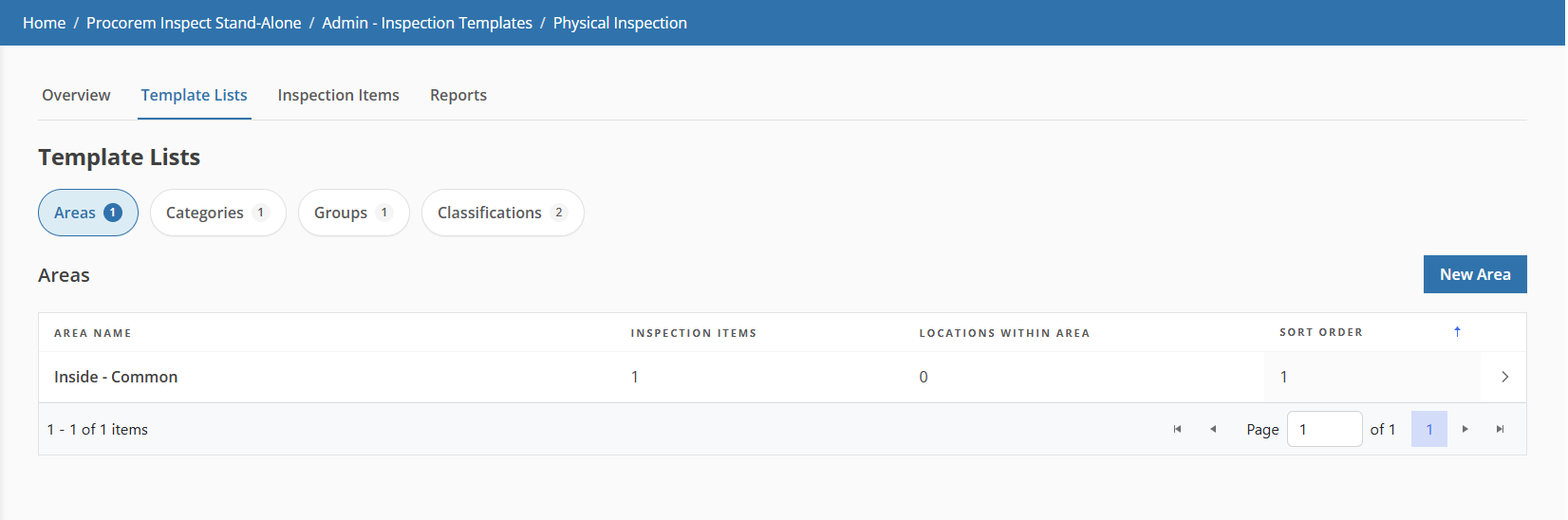
The Areas table shows:
Area Name
Inspection Items (count)
Locations Within Area (count)
Sort Order
Click any row to open the Area Details page.
To create an area:
On the Areas sub-tab, click New Area.
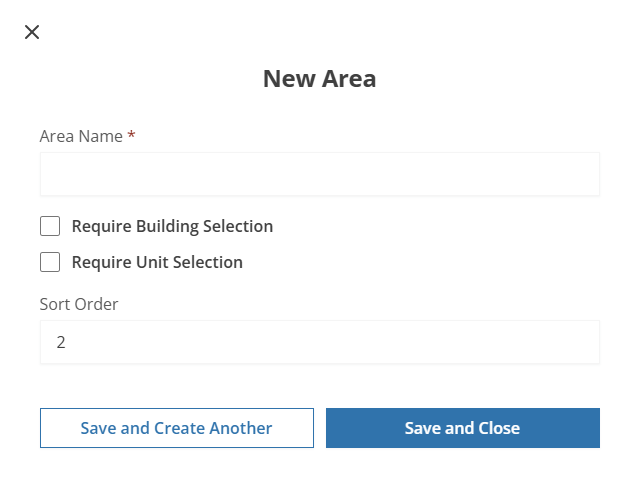
Enter the Area Name, up to 100 characters.
Select the Require Building Selection checkbox if you want to require inspectors to select a building when adding this area to an inspection.
Select the Require Unit Selection checkbox if you want to require inspectors to select a unit.
Optionally, enter the Sort Order.
Click Save and Close.
To edit an area, click the area row to open the Area Details page. Then update the area as needed and save.
If inspection items are linked to the area, deletion is blocked until those items are removed. If no items are linked, a confirmation dialog appears. Confirm to delete.
Locations are specific spots within an area (for example, "Kitchen" or "Bathroom" within an Inside area). Inspectors can log findings against locations during an inspection.
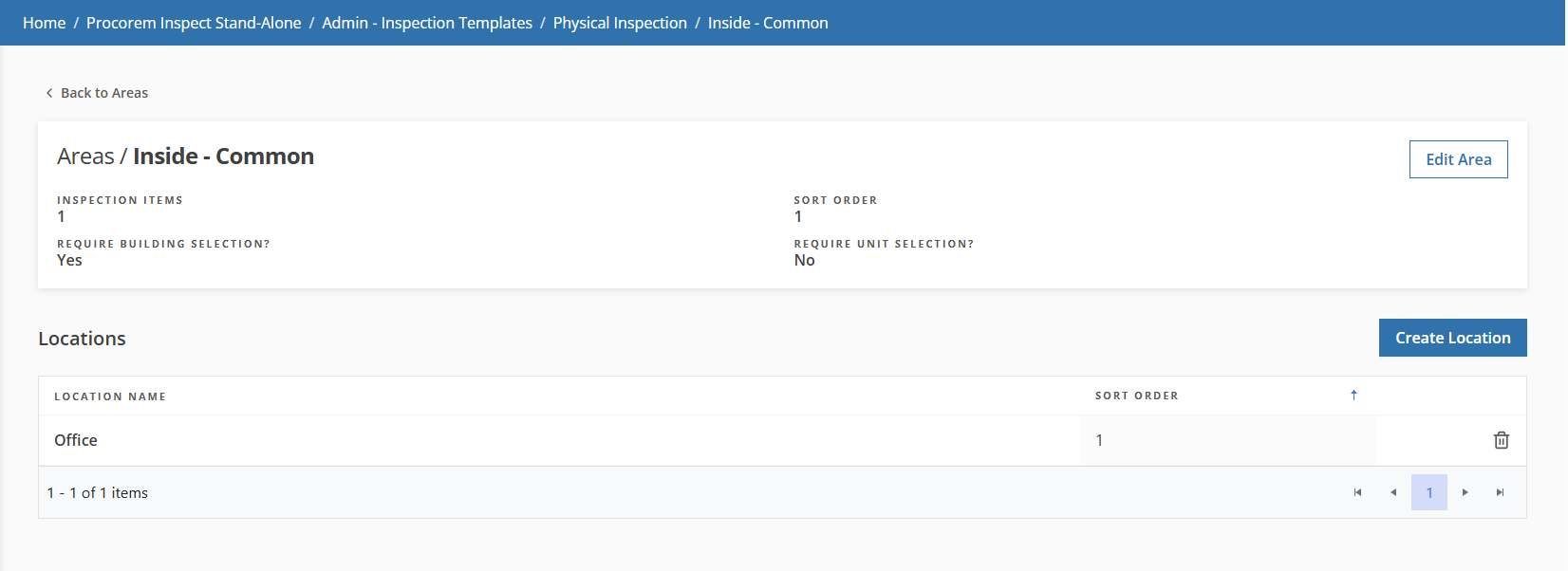
On the Area Details page, the Locations table shows Location Name and Sort Order.
To create a location:
On the Area Details page, click Create Location.
The Create Location popup opens.
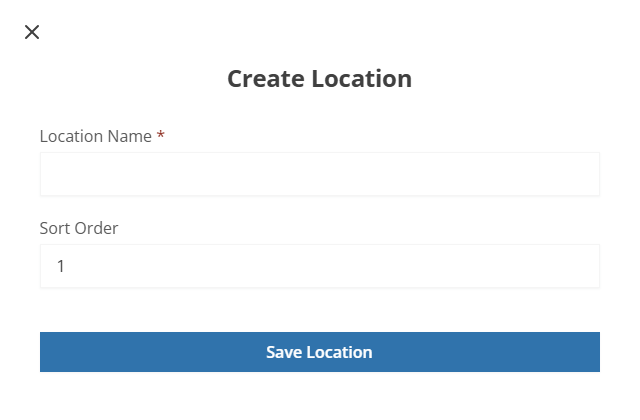
Enter the Location Name, up to 100 characters.
Optionally, enter the Sort Order.
Click Save Location.
Click the location row in the Locations table to open the Edit Location popup. Update the location as needed and save.
There are no restrictions on deleting a location.
On the Template List tab, select the Categories sub-tab. The table shows Category Name, Inspection Items (count), and Sort Order.
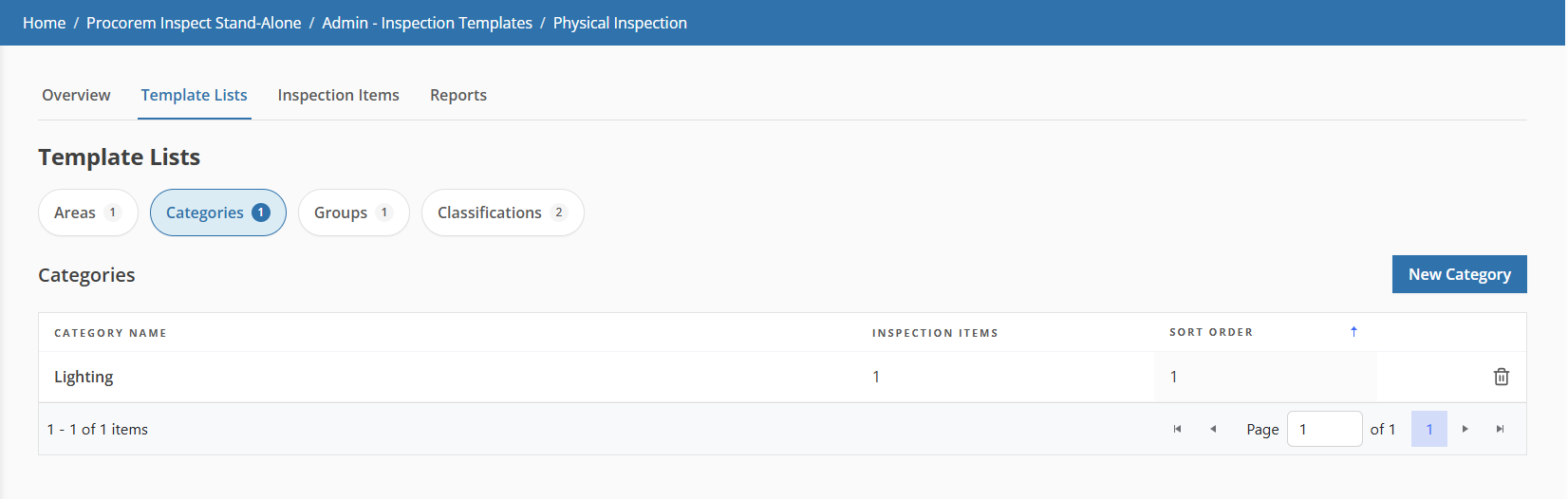
To create a category:
Click New Category.
The New Category popup opens.
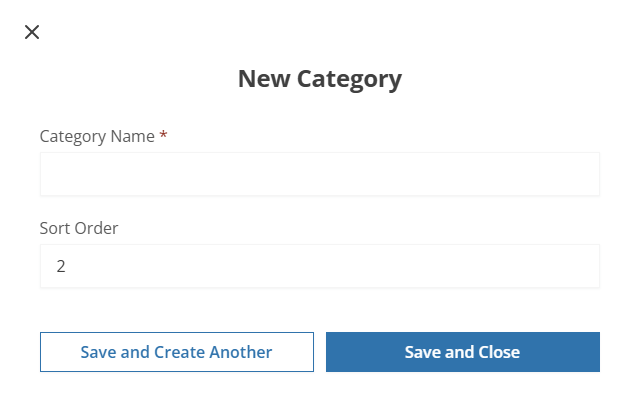
Enter the Category Name, up to 250 characters.
Optionally, enter the Sort Order.
Click Save and Close.
Click a category row to open the Edit Category popup. Update the category as needed and save.
Note
For published templates, the Save button is hidden. Category names can still be edited; see the note in "Build Template Structure."
If inspection items are linked to the category, deletion is blocked. If no items are linked, confirm to delete.
On the Template List tab, select the Groups sub-tab. The table shows Group Name, Inspection Items (count), and Sort Order.
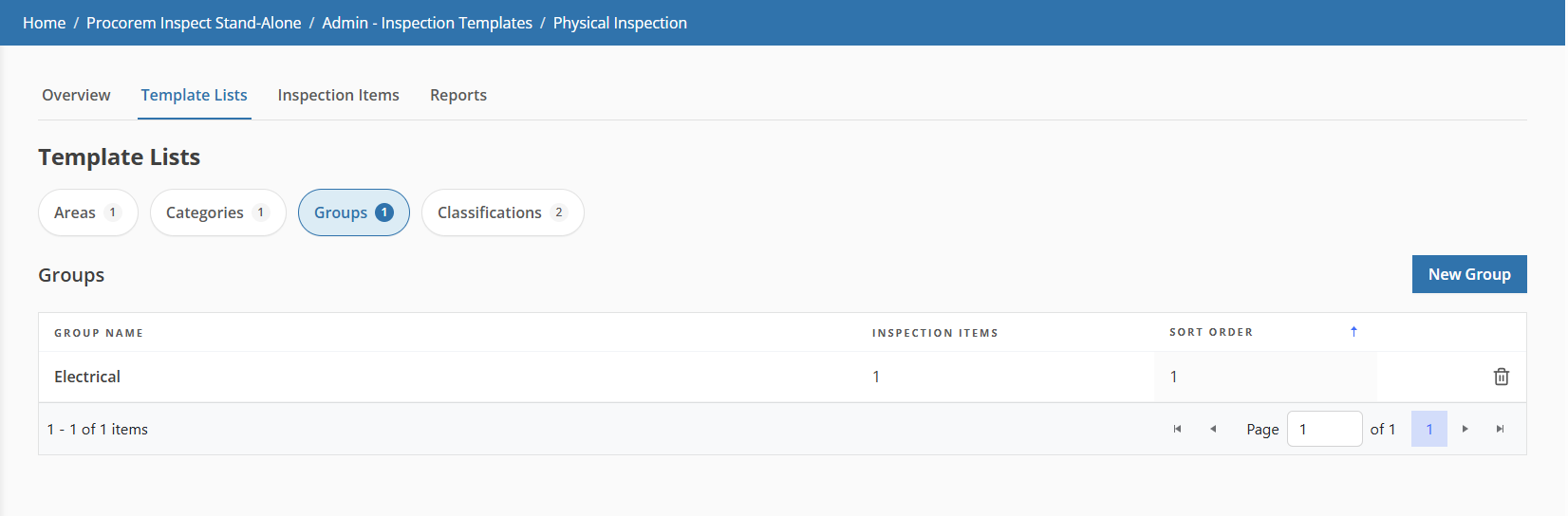
To create a group:
Click New Group.
The New Group popup opens.
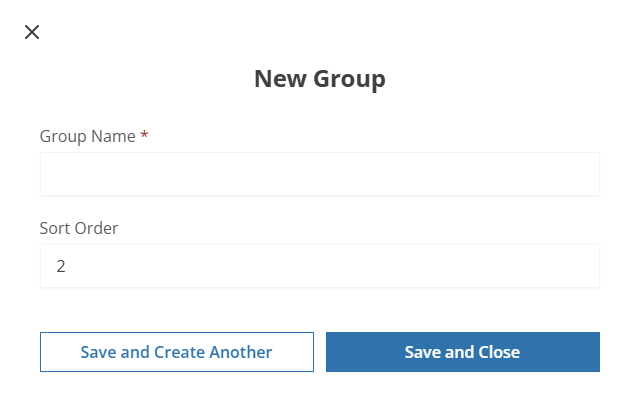
Enter the Group Name, up to 250 characters.
Optionally, enter the Sort Order.
Click Save and Close.
Click a group row to open the Edit Group popup. Update the group as needed and save.
If inspection items are linked to the group, deletion is blocked. If no items are linked, confirm to delete.
Classifications define defect severity. Each inspection item is assigned a classification, and that classification appears on findings recorded during an inspection.
On the Template List tab, select the Classifications sub-tab. The table shows Classification Name, Inspection Items (count), Is Critical? (Yes/No), and Sort Order.
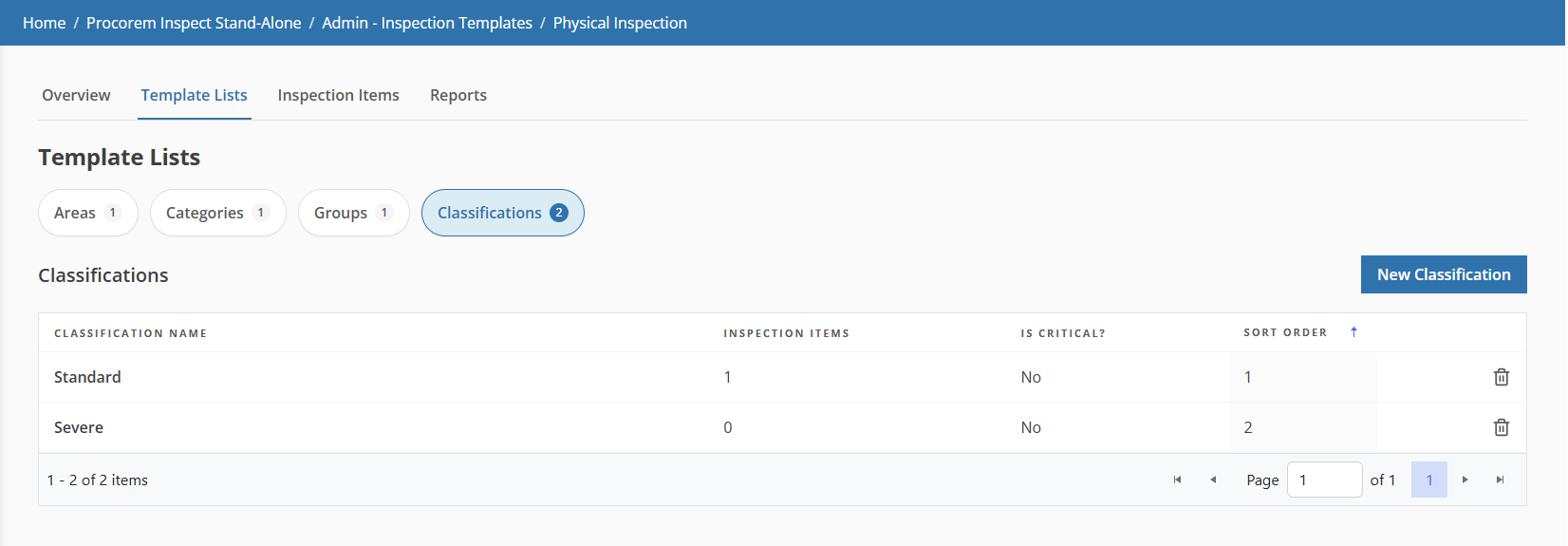
To create a classification:
Click New Classification.
The New Classification popup opens.
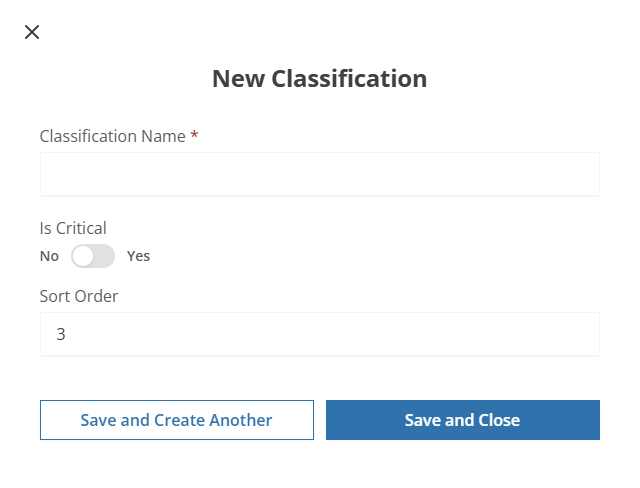
Enter the Classification Name, up to 100 characters.
Identify whether the classification Is Critical (defaults to No).
Critical classifications appear in red on findings and drive the Exigent Report.
Optionally, enter the Sort Order.
Click Save and Close.
Click a classification row to open the Edit Classification popup. Update the classification as needed and save. If you change Is Critical on a published template, the system updates the display of all findings that use this classification.
If inspection items are linked to the classification, deletion is blocked. If no items are linked, confirm to delete.
Inspection items are the individual defects or conditions an inspector evaluates. Each item is assigned to an Area, Category, Group, and Classification.
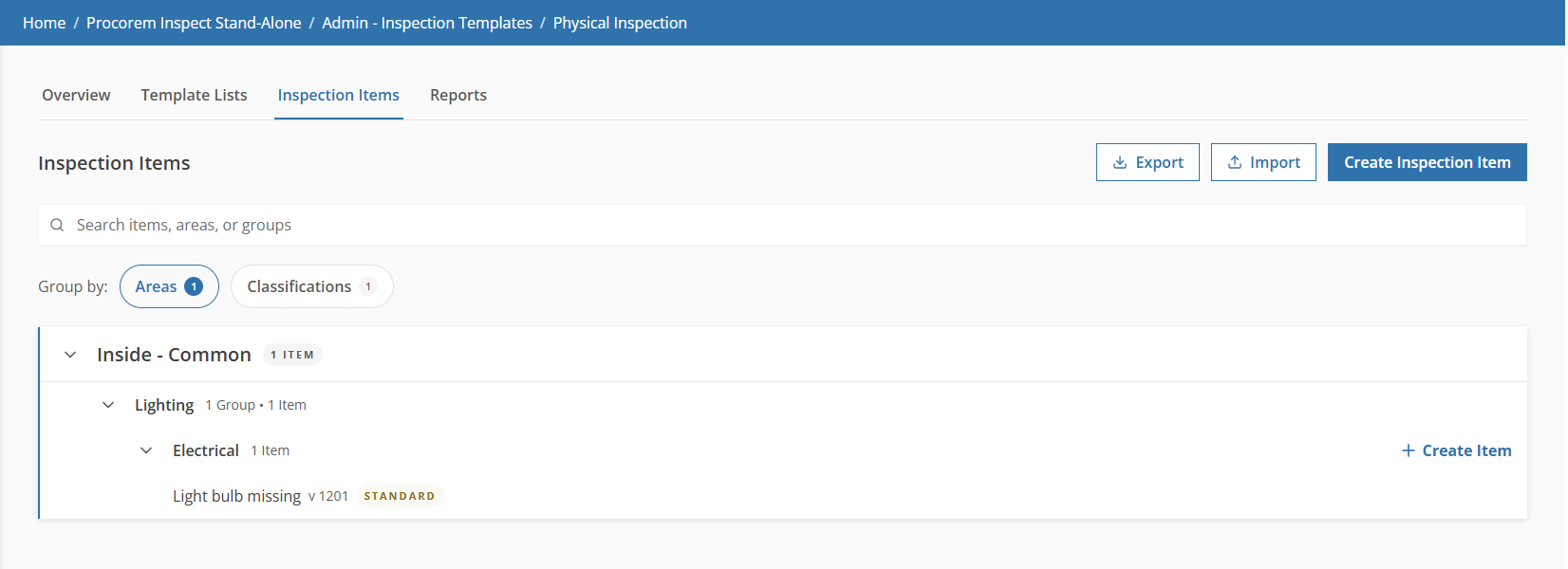
On the Template Overview page, select the Inspection Items tab. Items are displayed in a tree organized by Area > Category > Group by default. Toggle the grouping label to switch between Areas and Classifications views. Use the search box to filter in real time.
Note
After a template is published, the "Add Item" links are hidden and new items cannot be created from this template. Copy the template to create a revised version.
To create an inspection item:
On the Inspection Items tab, click Create Inspection Item.
If the template includes areas, categories, or groups, then you can click Create Item at the relevant Area/Category/Group level. This pre-populates the Area, Category, and Group context on the form.
The New Inspection Item page opens.
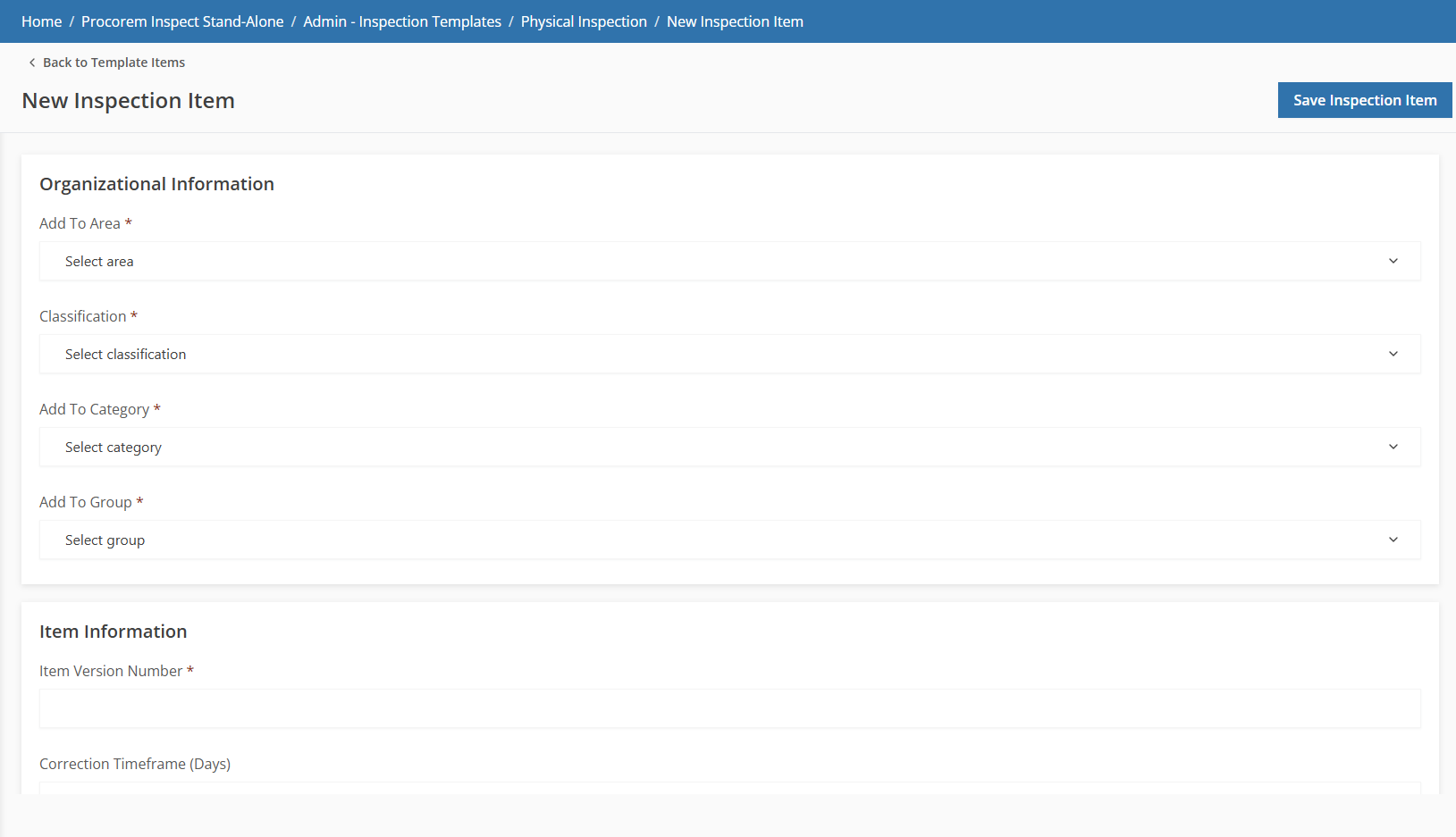
Complete the Organizational Information:
Area
Classification
Category
Group
Complete the Item Information:
Item Version Number
Sort Order (optional)
Correction Timeframe in Days (optional)
Description
Criteria (optional)
Instructions (optional)
Review Criteria (optional)
Tools Required (optional)
Tools or Equipment Useful (optional)
Click Save Inspection Item.
Click an item row on the Inspection Items list to open the Edit Inspection Item page. Update the fields as needed and save. For published templates, all fields are read-only. Copy the template to make changes.
Item deletion is hidden for published templates.
For a large portfolio, use the Property Specific Items tab on the Inspection Template page to view, export, and import property specific items for every property that uses the template, instead of updating items one property at a time. This tab is built to handle tens of thousands of items.
Important
This tab lives on the Inspection Template page, not a property's Inspections page. It shows property specific items across every property that uses the template. For the property-level, one-at-a-time flow, see Manage Property Specific Inspection Items.

Open a template from the Inspection Templates list.
Select the Property Specific Items tab.
The tab displays every property specific item linked to the template in a searchable table.
On the Property Specific Items tab, click Export.
Click one of the following options:
Export All—An export of every property specific item linked to this template.
Export Blank Template—An export with reference tabs only.
The file downloads to your computer.
Importing from Excel creates new items and updates existing ones across many properties at once. Import does not delete property-specific items that are absent from the file. To remove an item from future inspections, deactivate it (published templates) or delete it (unpublished templates) from the Edit Property Specific Inspection Item page for the template.
On the Property Specific Items tab, click Import.
The Import Property Specific Items popup opens.
Upload your edited workbook in the Add XLSX File area.
Review the preview panel before confirming.

Click Import to apply the changes.
The system processes the import file.

Click Done.
Use the Reports tab on the Template Overview page to control which report types are available for inspections that use this template. Only the report types selected here appear on the Reports tab when an inspector opens an inspection that uses this template.
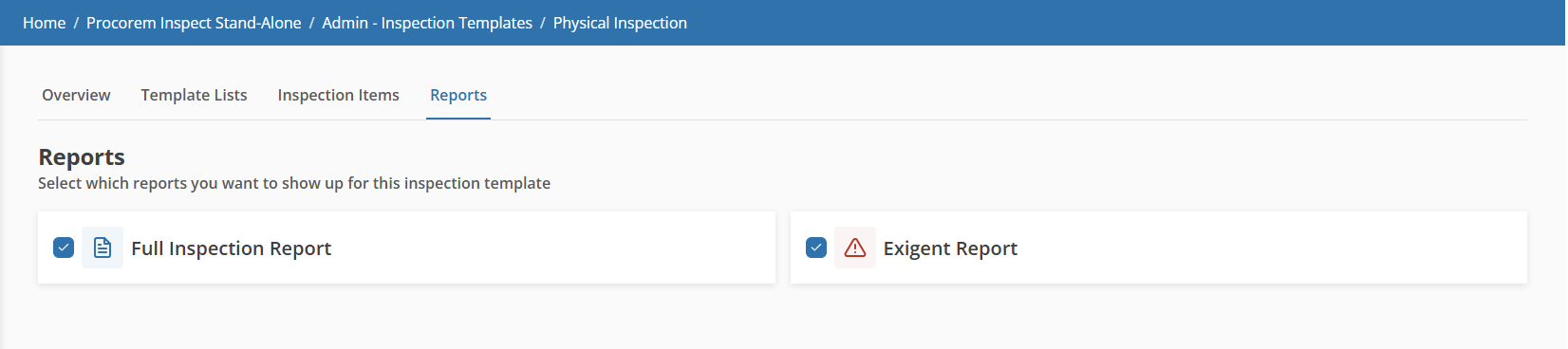
Two report types are available:
Full Inspection Report—All findings from all areas
Exigent Report—Critical findings only (Is Critical = Yes)
Both report types are selected by default for new templates. Toggle a card's checkbox to include or exclude that report type. Changes are saved automatically.
You can rename a template or change its version while it is unpublished.
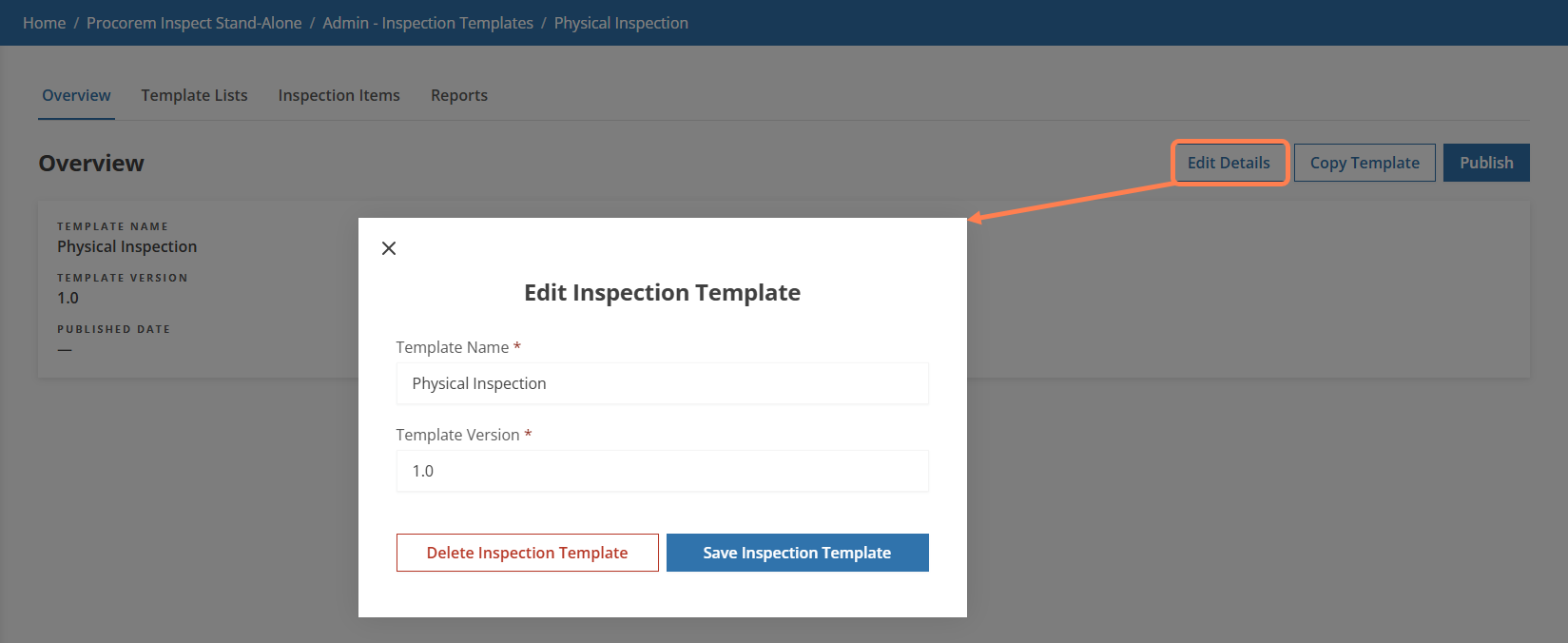
Edit Details is not available after a template is published. To use a different name or version, copy the template and update the copy before publishing.
Publishing a template makes it available (when also Active) for selection when creating new inspections.
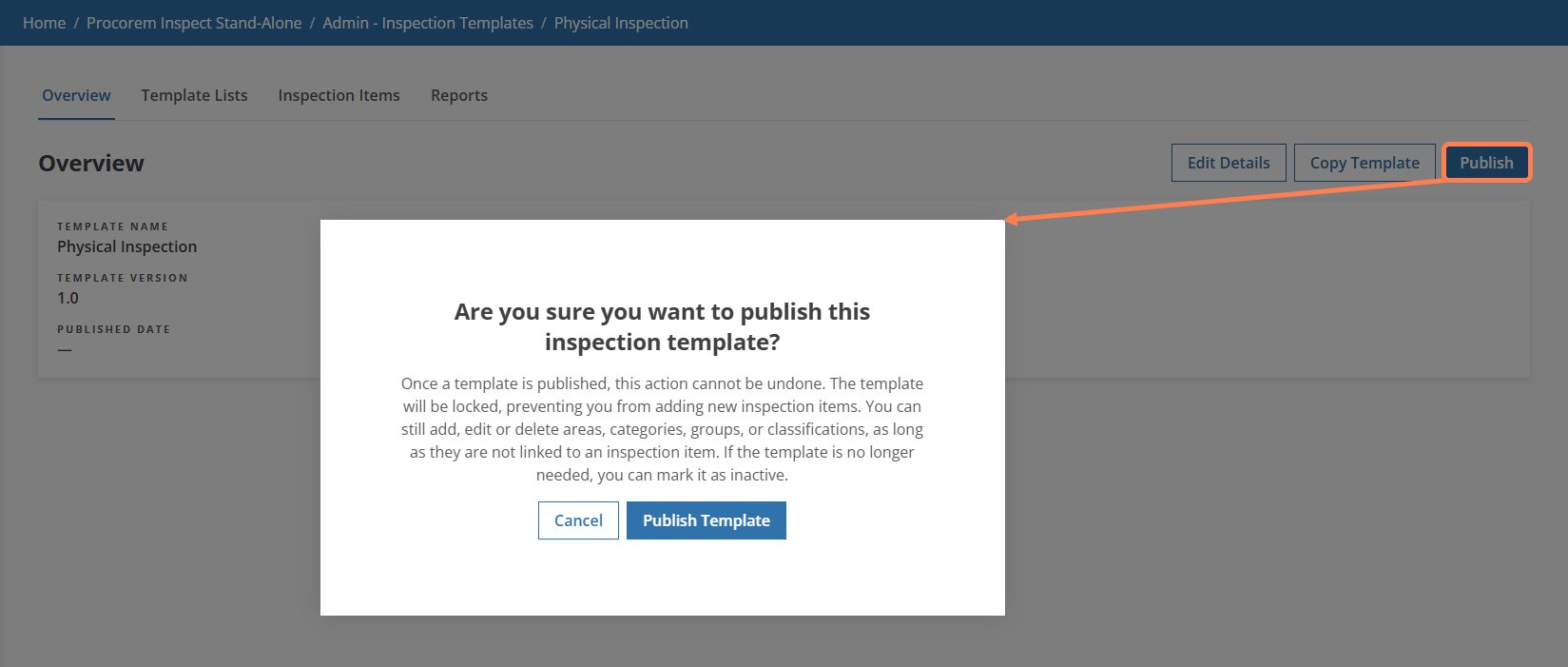
On the (unpublished) Template Overview page, click Publish.
Review the confirmation message. Once published, inspection items are locked. Areas, categories, groups, and classifications can still be modified.
Click Publish Template to confirm.
The template is published and active. The Published Date is the current date.
A published template must be Active to appear as an option when creating new inspections.
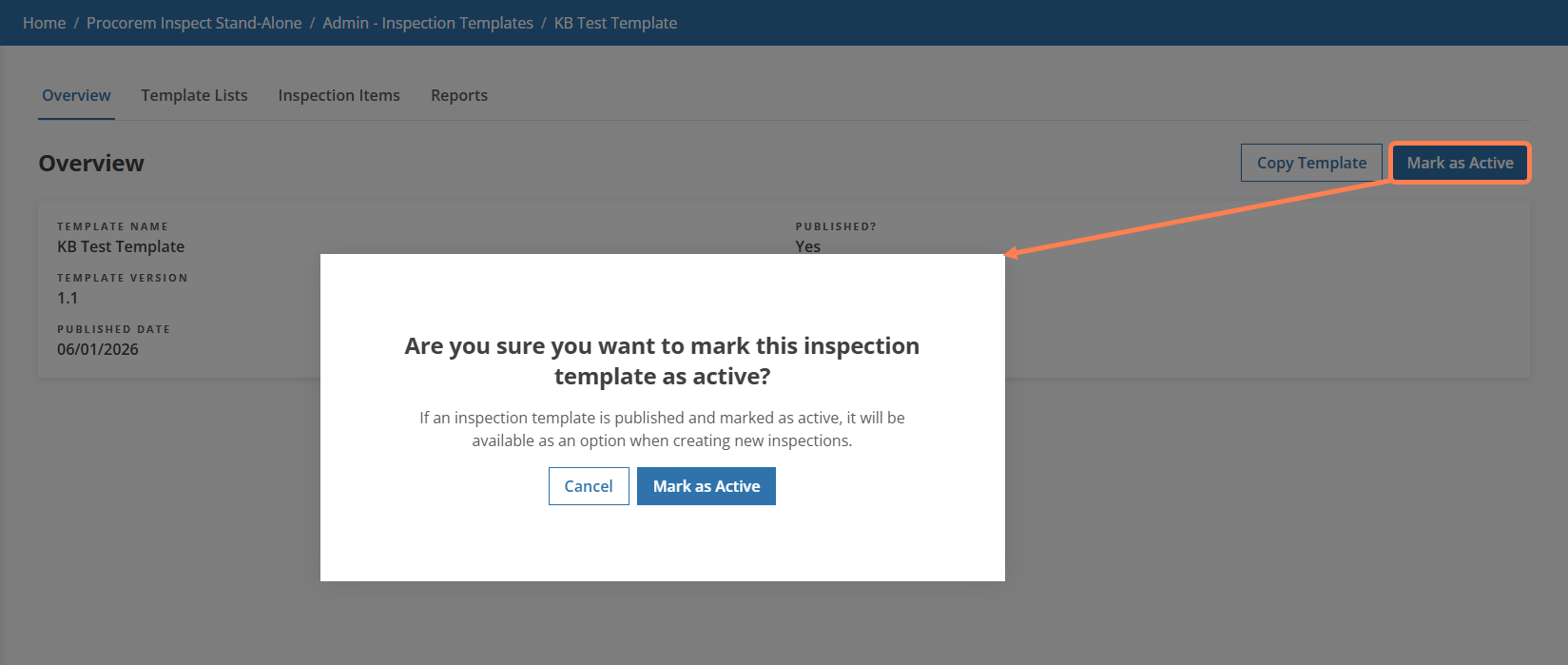
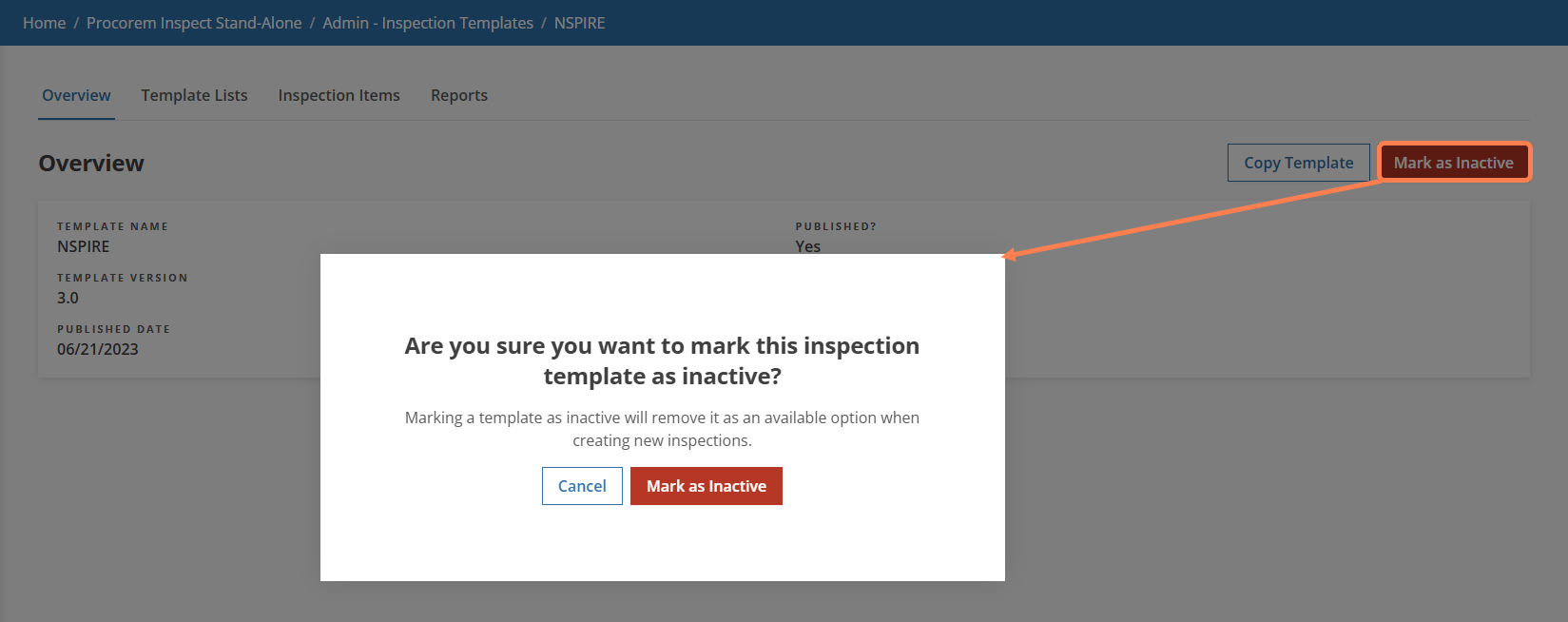
Mark as Active; Mark as Inactive
On the published Template Overview page, click Mark as Active or Mark as Inactive to change the status. Review the confirmation. Inactive templates are removed as an option for new inspections; existing inspections using the template are unaffected. Active templates are available for new inspections.
Use Copy Template to create a new unpublished template based on an existing one. This is the primary way to create a revised version of a published template.
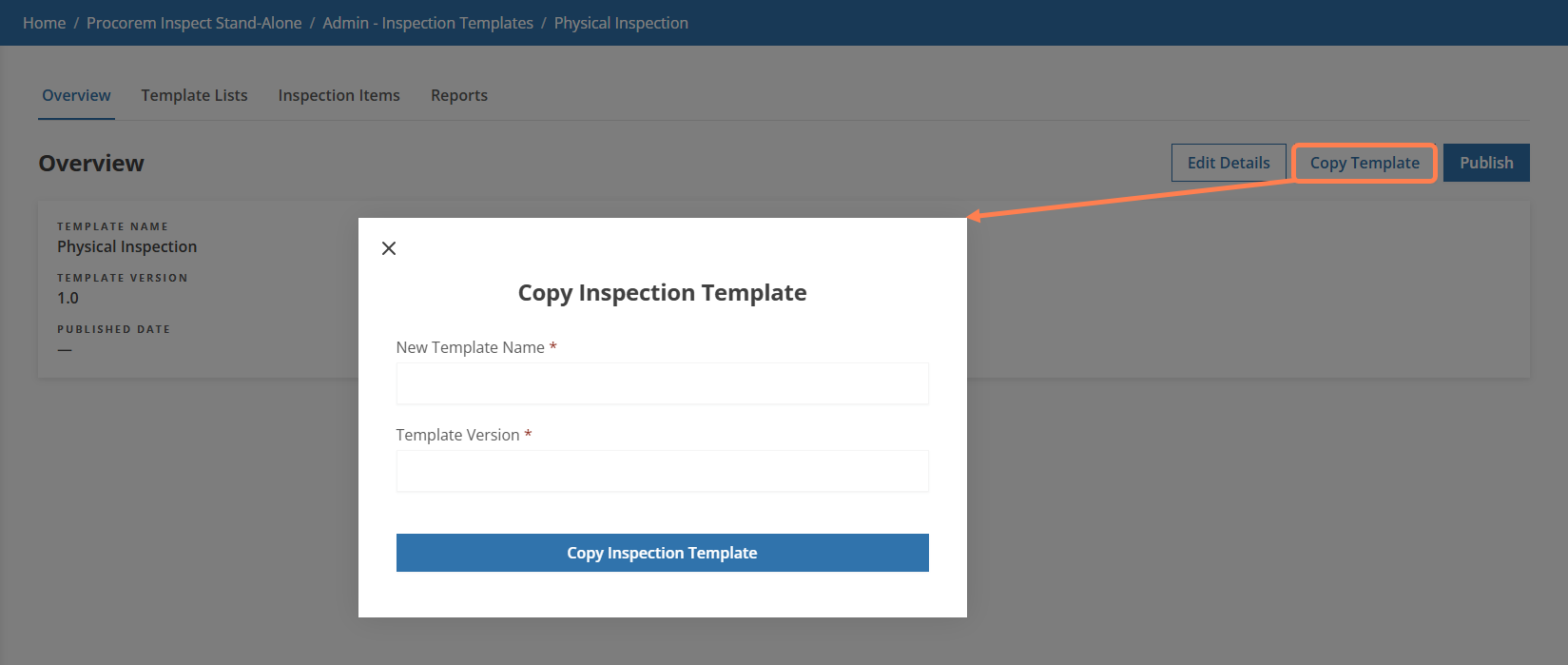
On the Template Overview page, click Copy Template.
Enter the New Template Name, up to 200 characters.
Enter the Template Version.
Optionally, toggle the Include Property Specific Inspection Items option to include these items, if the template has them.
Click Copy Template.
The copy is created as an unpublished, inactive template.
For large templates, use the XLSX import and export tools on the Inspection Items tab to manage items in bulk.
Export creates an XLSX workbook containing the full template structure—all areas, locations, categories, groups, classifications, and items—formatted for editing and re-import.
On the Inspection Items tab, click Export. The file downloads to your computer.
The exported workbook contains seven tabs: Instructions, Areas, Locations, Categories, Groups, Classifications, and Items. Column headers and data-validation lists are pre-built for you.
Note
Property-specific inspection items are not included in the export. The export fails if the template contains 10,000 or more items. Property-specific items have their own export and import, available from the Property-Specific Items tab on this same Inspection Template page.
Import updates the template's structure from an edited XLSX workbook. A preview lets you review changes before they are applied.
Limits: 1,000 items maximum; 200 records maximum for each of Areas, Locations, Categories, Groups, and Classifications.
Note
For published templates, the Import option is not available. You can copy the template instead.
On the Inspection Items tab, click Import.
The Import Template popup opens.
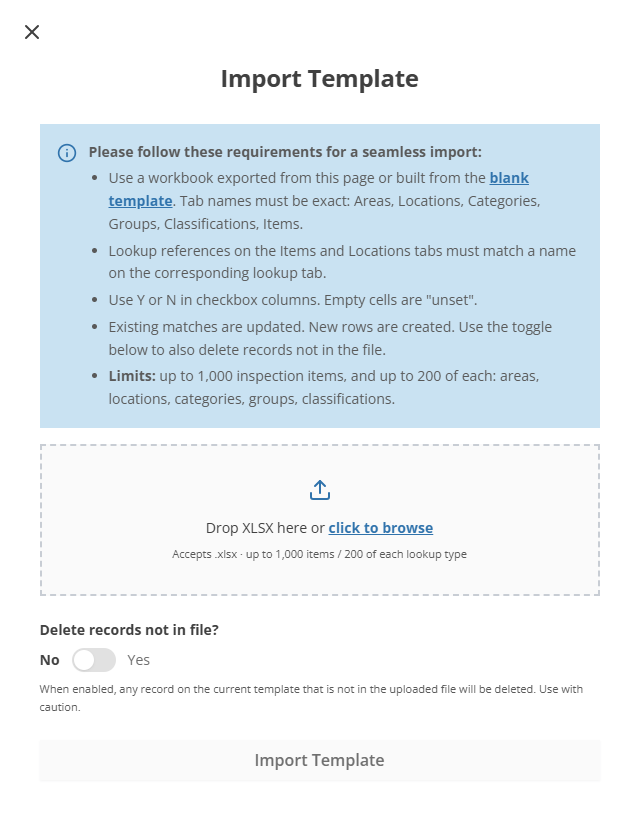
Upload your XLSX file.
The system reads the file and shares a preview of what will happen during the import.
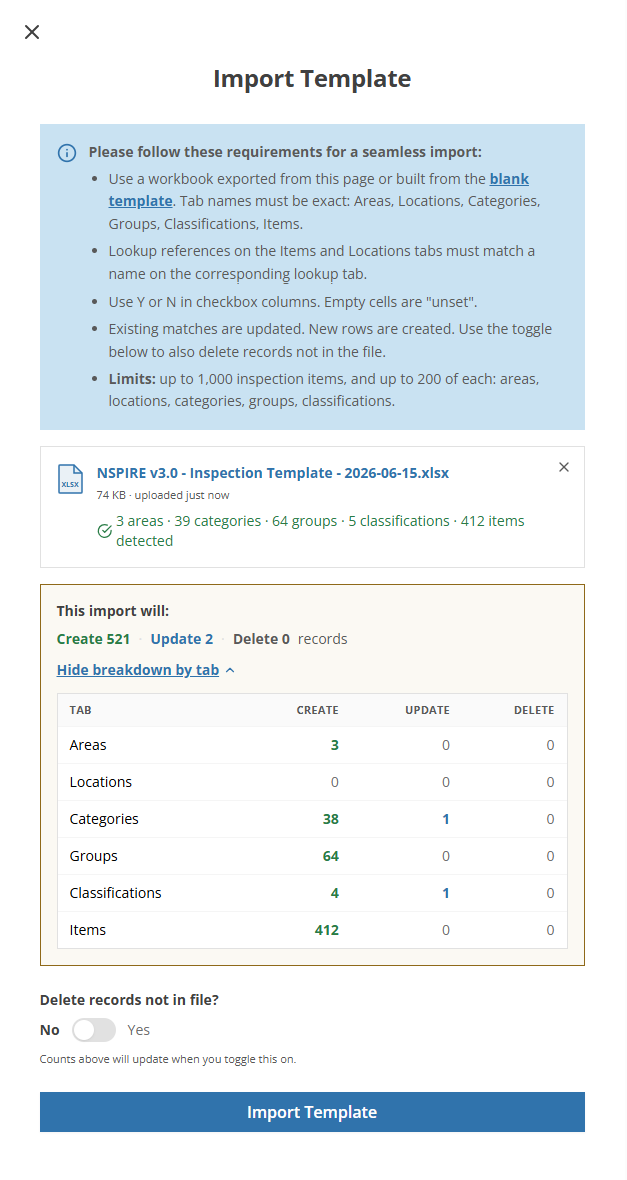
Review the preview panel, which shows Create / Update / Delete counts for each tab (Areas, Locations, Categories, Groups, Classifications, Items).
Toggle Delete records not in file if you want the import to remove existing records that are absent from the workbook.
Click Import to apply.
If the import succeeds, a summary confirms the counts applied. If any row-level errors are found, the import fails, the template is unchanged, and a row-level error report is shown.
You can permanently delete a template only while it is unpublished. Deleting a template permanently removes it along with all its areas, categories, groups, classifications, and inspection items.