Browse and Manage Files
Important
Your WorkCenter access and permissions in the Procorem File Explorer are the same as in the browser. You can only access WorkCenters you are a collaborator on, and your actions are limited by your assigned role. See WorkCenter Roles for more information.
Once logged in, your WorkCenter folders are visible in the Procorem File Explorer. The folder structure mirrors the WorkCenter and folder structure in Procorem. The left panel shows your WorkCenters and their folder structure. WorkCenters are identified by the WorkCenter icon, and folders by the folder icon. The right panel shows the contents of the selected folder.
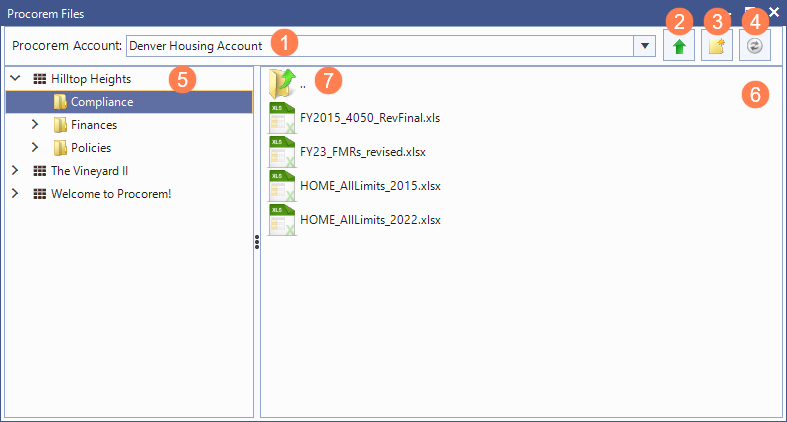
Procorem Account list—Switch the account you are browsing.
Upload—Select local file(s) to upload to the current folder.
New Folder—Create a folder in the current location.
Refresh—Reload the current folder.
Folder Tree—WorkCenters and their folders.
File Area—Double-click to open; right-click for actions.
".."
 —Double-click to go up one level.
You can right-click a file or folder for the following actions:
Open—Downloads the file and opens it in its default Windows app.
Download—Asks for a destination folder, then saves the selected item(s) there.
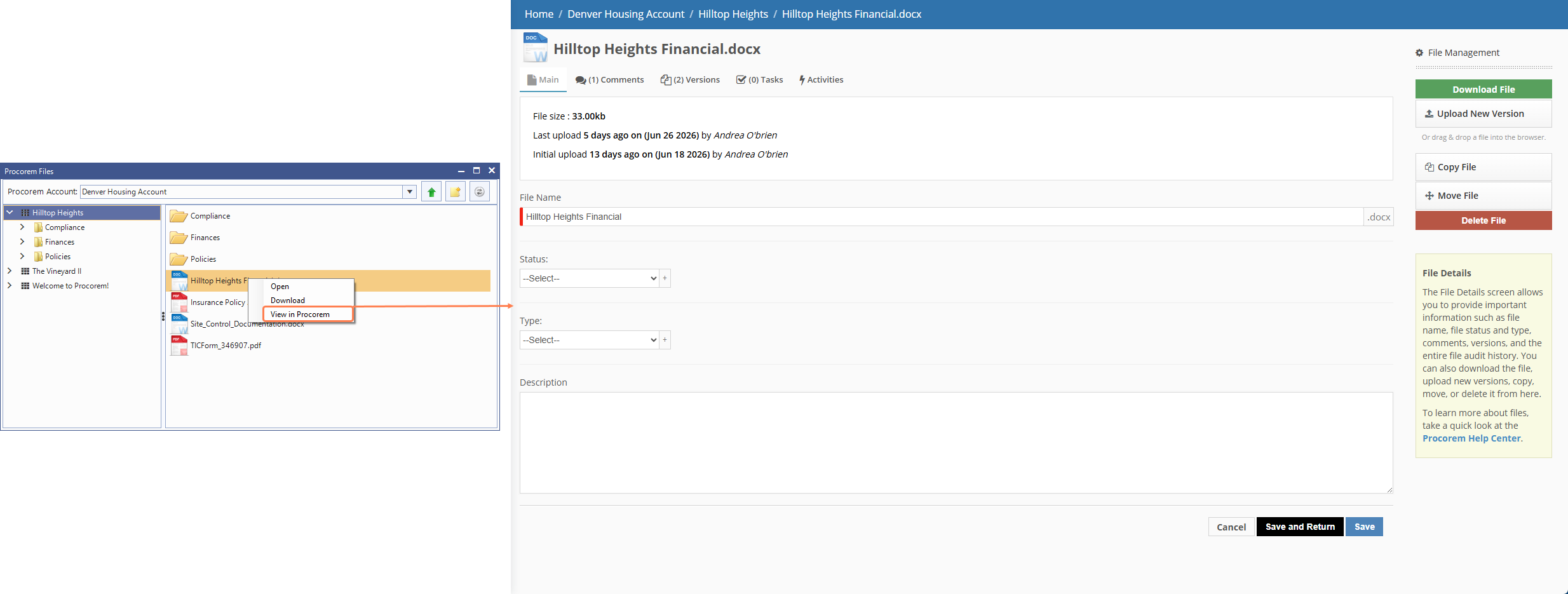
View in Procorem—Opens that file/folder in the Procorem web app in your browser.
When you open the Procorem File Explorer, the account selected by default is the first one alphanumerically, if you have multiple accounts.
Select an account in the Procorem Account list to change it.
Use the left panel to navigate to a WorkCenter and its folders. Use the right panel to navigate the files and folders within a WorkCenter.
Tip
If files or folders uploaded from the Procorem website do not appear in the Procorem File Explorer, click the Refresh button  in the toolbar. The File Explorer syncs with Procorem and displays the current contents of the selected folder.
You can download a single file, multiple files, a folder, or an entire WorkCenter.
To download a single file:
Right-click the file (or folder) in the right panel.
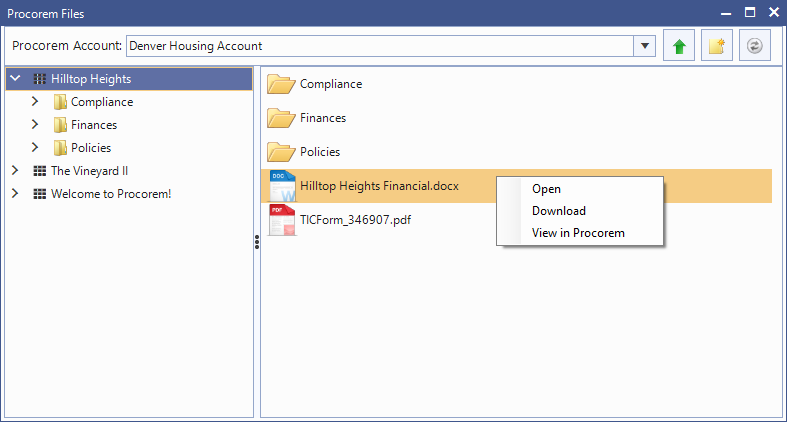
Click Download.
The Save As window opens, where you can select the download location.
The file (or the folder and its contents) downloads to your computer to the location you specify.
Tip
Alternatively, you can double-click a file to start the download.
To download multiple files at once:
Hold SHIFT and click to select a range of files, or hold CTRL and click to select individual files.
Right-click any selected file and click Download.
The Browse For Folder window opens, where you can select the download location.
The selected files download sequentially to your computer to the location you specify.
Tip
To download and automatically open multiple files, select them using SHIFT or CTRL, right-click, and click Open instead of Download. The files download and open in their associated applications.
To download an entire WorkCenter:
In the left panel, right-click the WorkCenter name.
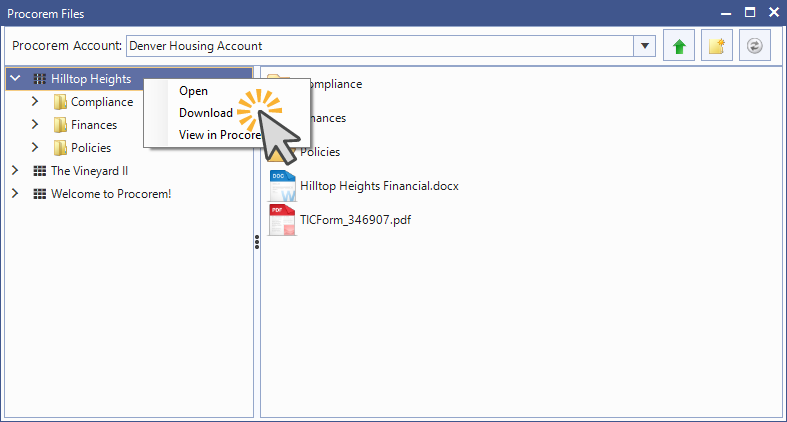
Click Download.
The Browse For Folder window opens, where you can select the download location.
All files and folders in the WorkCenter download to your computer to the location you specify. The downloaded copy of the WorkCenter retains the structure of the WorkCenter as it exists in Procorem.
Right-click the file in the right panel.
Click Open.
The file downloads to your computer to the location you specify and then opens in its native application.
Tip
The desktop app opens the downloaded copy. It doesn’t auto-sync your edits back. After editing, re-upload with the Upload button or drag-drop.
You can upload files to a WorkCenter folder using the Upload button or by dragging and dropping.
To upload files using the Upload button:
In the left panel, navigate to the WorkCenter folder where you want to upload.
Click the Upload button
 in the toolbar.
In the file browser, select one or more files, and then click Open.
The selected files upload to the WorkCenter folder.
To upload files by dragging and dropping:
In the left panel, navigate to the WorkCenter folder where you want to upload.
Drag one or more files from your computer into the right panel.
The file(s) upload to the WorkCenter folder.
Right-click a file, folder, or WorkCenter and click View in Procorem to open it in the Procorem website in your default browser. You will be prompted to log into Procorem if you do not have an active session already.
You can create a new folder in the WorkCenter or subfolder for another folder. The folder name must be unique in the location you are adding it to.
In the left panel, navigate to the WorkCenter (top Files level) or the folder where you want to add a folder.
Click the New Folder button
 in the toolbar.
An inline text box appears.
Type the folder name in the text box, and press Enter.
If files or folders uploaded from the Procorem website do not appear in the Procorem File Explorer, click the Refresh button in the toolbar. The File Explorer syncs with Procorem and displays the current contents of the selected folder.
Action | Result |
|---|---|
Double-click a file | Downloads the file |
Double-click a folder / ".." | Navigates into the folder or up one level |
Right-click | Menu: Open, Download, View in Procorem |
Drag files in (from Windows Explorer) | Uploads them to the current folder |
Upload button | Uploads selected file(s) to the current folder |
New Folder button | Adds a folder you name inline. Press Enter to confirm. (A duplicate name is rejected.) |
Refresh button | Reloads the current folder |
CTRL/SHIFT + click | Multi-select, for example, to download several items at once |