Procorem Inspect Release Notes: 26.2 Release 1
ProLink Solutions is pleased to announce a Procorem Inspect app release.
Production Build: June 11, 2026 (app release date depends on availability in your app store)
App Version: 1.0.578
What's New
The release introduces the following new functionality.
Report Updates
The Reports tab in the Procorem Inspect mobile app has been updated to match the experience of the web-based module.
The Reports tab now displays a Report Previews section showing a card for each report type associated with the inspection's template. Each card displays the report type name (for example, "Full Inspection Report") with a Preview link. Tapping Preview opens the report preview directly, no extra steps required.
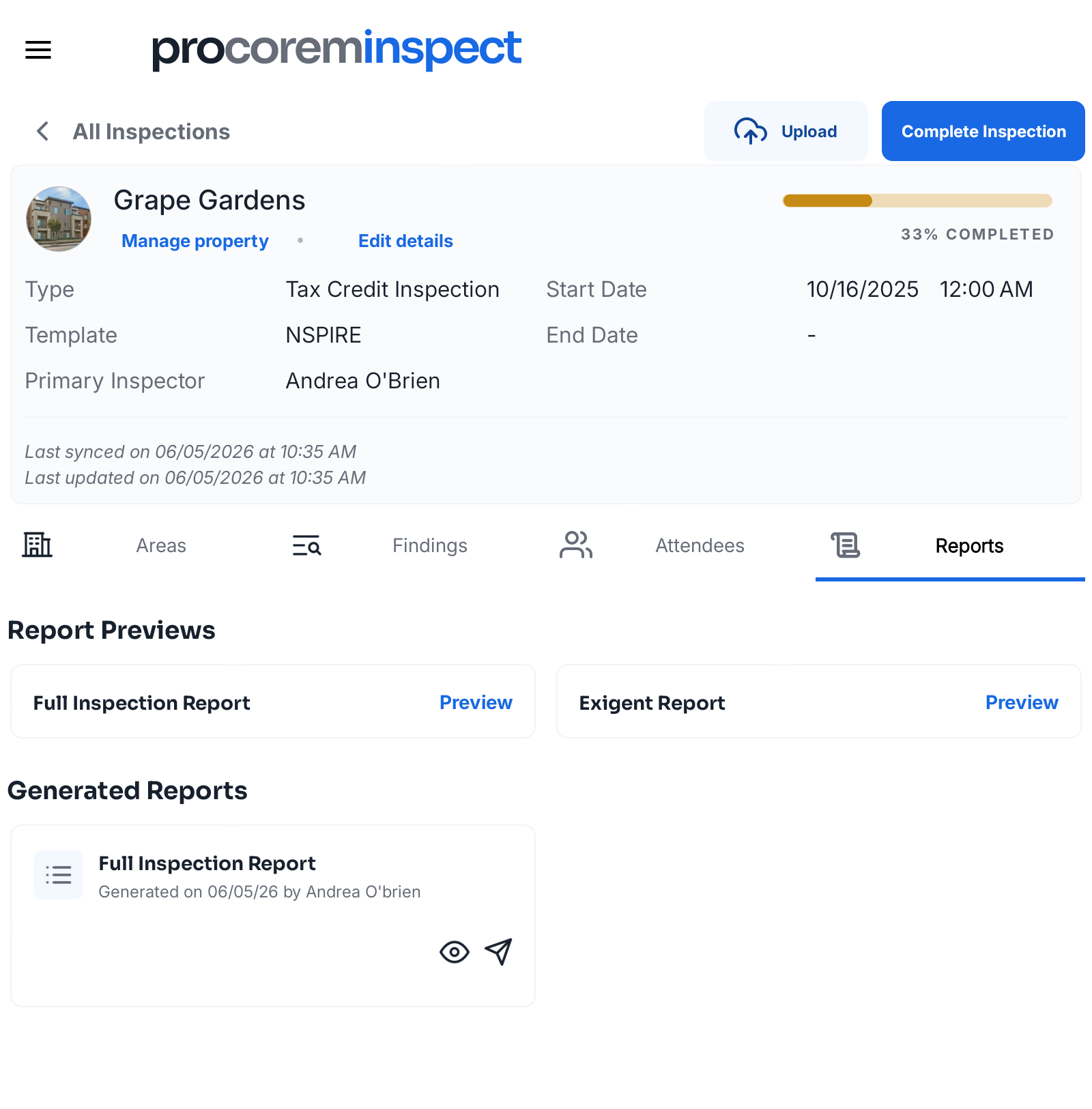
Preview cards are automatically derived from the template's report type associations and always reflect current inspection data.
If no report types are linked to the inspection's template, the section displays: "No preview reports associated to this inspection's template."
The Generated Reports section now also shows a clear empty state message when no generated reports exist: "No generated reports have been created for this inspection."
Status Updates
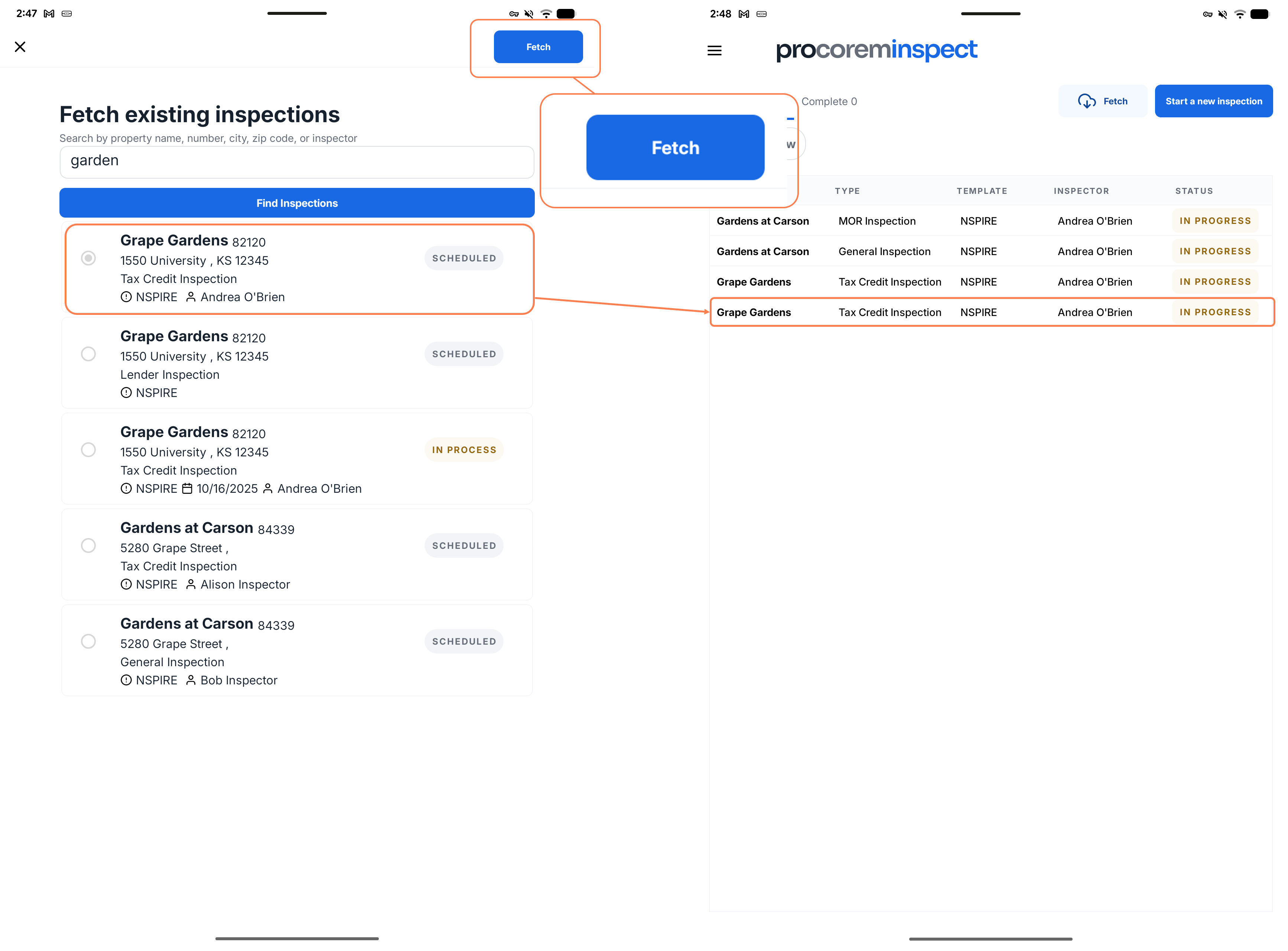
When a fetched inspection with "Scheduled" status is opened, it now transitions to "In Progress."
Updates to the Location Field on the Add Finding Page
When you log a finding in the Procorem Inspect app, the Location field is now a drop-down instead of a free-text input if the system administrator configured location values for the inspection template's area.
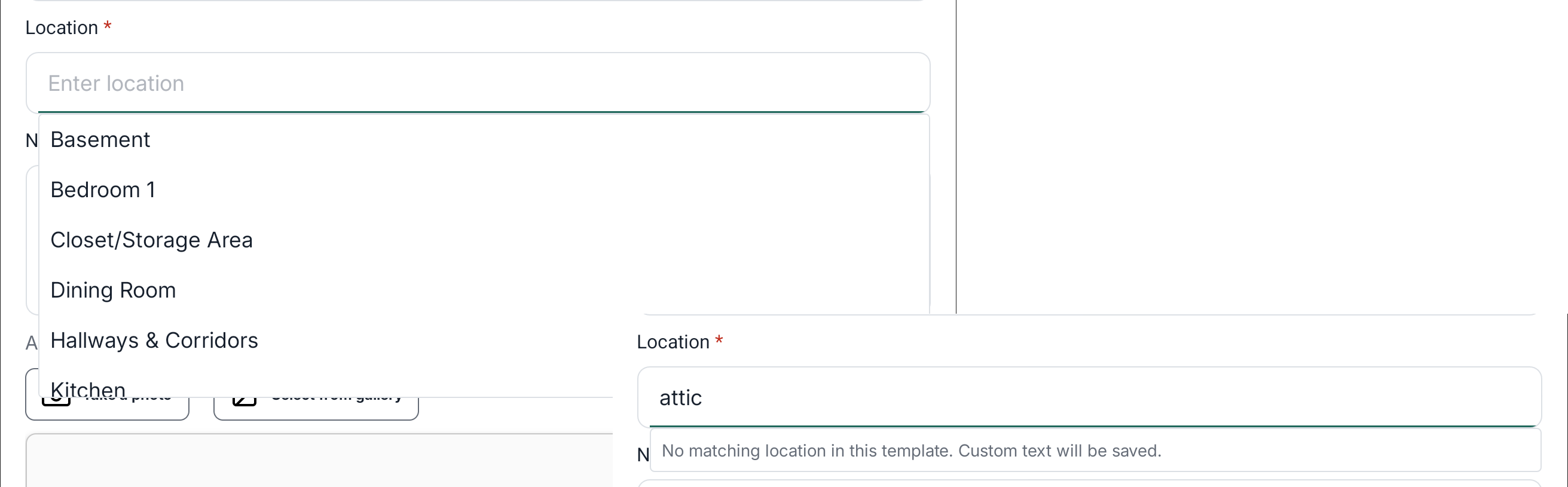
The drop-down list is automatically filtered based on the finding area so you only see location options that are relevant to the area you are working. The available options are defined in the inspection template for the current inspection type.
If none of the predefined options fit, you can type a custom value. If no location values are defined for the inspection template area, then the Location field remains a text field.
Location remains a required field; a finding cannot be saved without a selection.
Improved Multi-Inspector Upload (Merge)
The Merge upload in the Procorem Inspect app now correctly handles inspections where multiple inspectors are working simultaneously on the same property.
Previously, when a second inspector uploaded their work using Merge, it could unintentionally overwrite findings already submitted by a different inspector, even for areas that the second inspector never touched. This release fixes that behavior.
The app tracks which areas an inspector has actually modified on their device. When uploading via Merge, only those changed areas are sent to the server. Areas that were fetched but left untouched are skipped entirely, so another inspector's previously uploaded work for those areas is preserved.
This change affects the following workflows:
Multi-inspector inspections—Inspectors can now upload their respective portions of an inspection independently without risk of overwriting each other's findings. Each inspector's Merge upload only touches the areas they worked on.
Fetch and re-fetch—Fetching an inspection resets all local tracking, which is expected behavior. Any work entered before a re-fetch that was not yet uploaded will be discarded, so inspectors should upload before re-fetching if they want to preserve local changes.
Merge with no changes—If an inspector fetches an inspection and makes no changes, a Merge upload will send nothing to the server but will still pull down any work uploaded by other inspectors to keep the local device current.
Overwrite—The Overwrite option is unchanged and continues to replace all inspection data on the server with what is on the device.
No changes to the upload workflow are required. The Merge / Overwrite selection popup looks and works the same as before. The improvement is entirely behind the scenes in how Merge decides which areas to send.
ProLink also added visual indicators to the app to help you keep track of areas with edits that have not been uploaded yet.
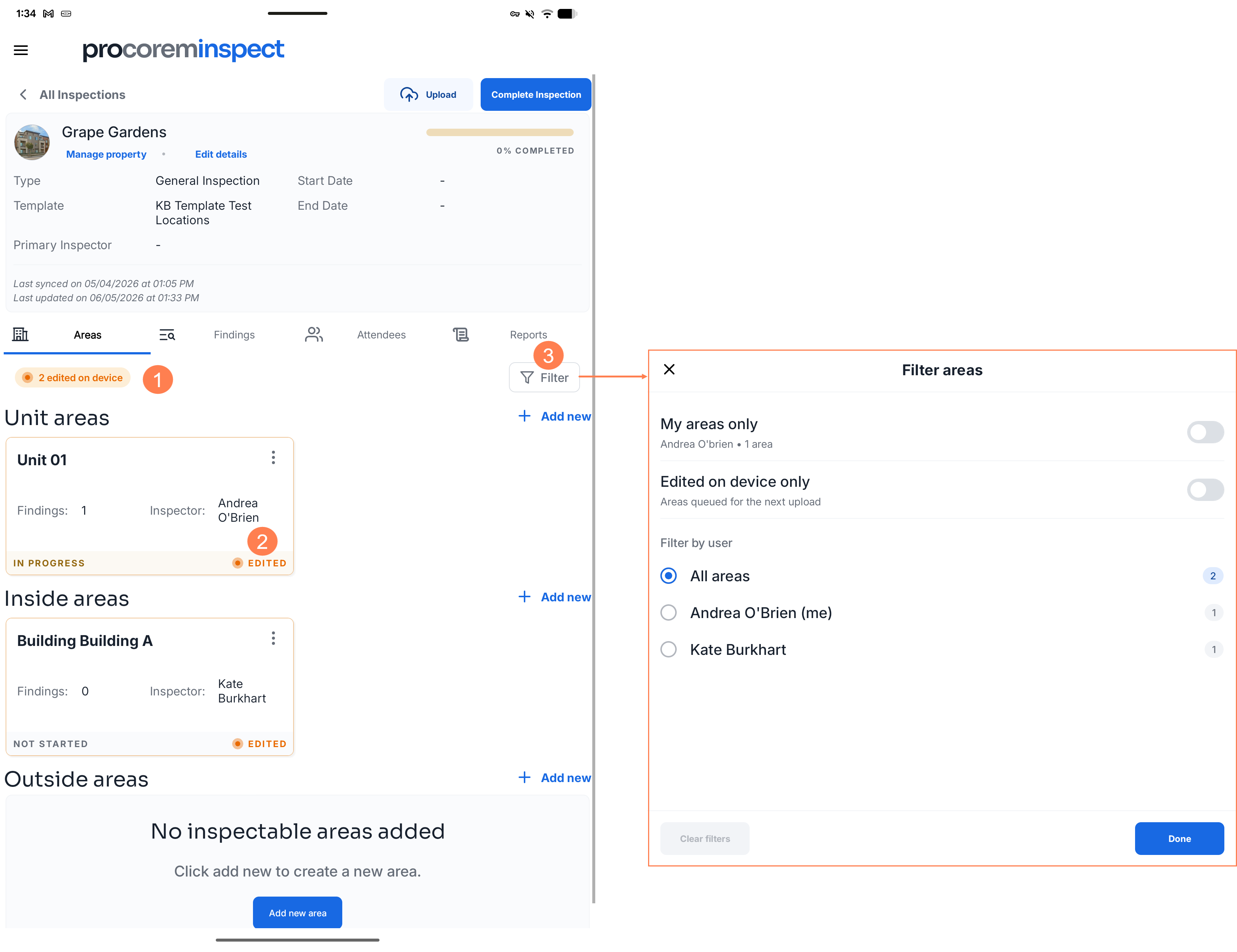
On the Areas tab, you can now see:
The total number of areas edited on the device.
An indicator on the area(s) that have been edited.
A filter icon that opens a filter panel. You can filter by:
My areas only—Shows only areas assigned to you. The sub-label displays your name and how many areas you have.
Edited on device only—Shows only areas with unsaved changes, regardless of who they're assigned to. This filter can be combined with a user filter.
Filter by user—Select any inspector assigned to this inspection to see only their areas. Select All areas to remove the user filter. If any areas have no inspector assigned, an Unassigned option is also shown.
Latest App Support
The app now supports iOS 26.
New Procorem Inspect Subscription Offering
ProLink is excited to introduce a new Procorem Inspect subscription offering. This subscription includes the Procorem Inspect app and a new web-based module that brings your property inspection workflows directly into Procorem. This initial release delivers a full suite of capabilities for managing properties, buildings, units, inspections, and findings—all from a modern, intuitive interface built specifically for housing finance professionals.
Properties
Managing your portfolio starts with Properties. The new Properties list page gives you a clean, searchable, and sortable view of every property in your portfolio. You can search by property name, number, type, city, county, or status, and quickly jump to any record with full-row click navigation. Pagination, a configurable rows-per-page control, and a XLSX export round out the experience.
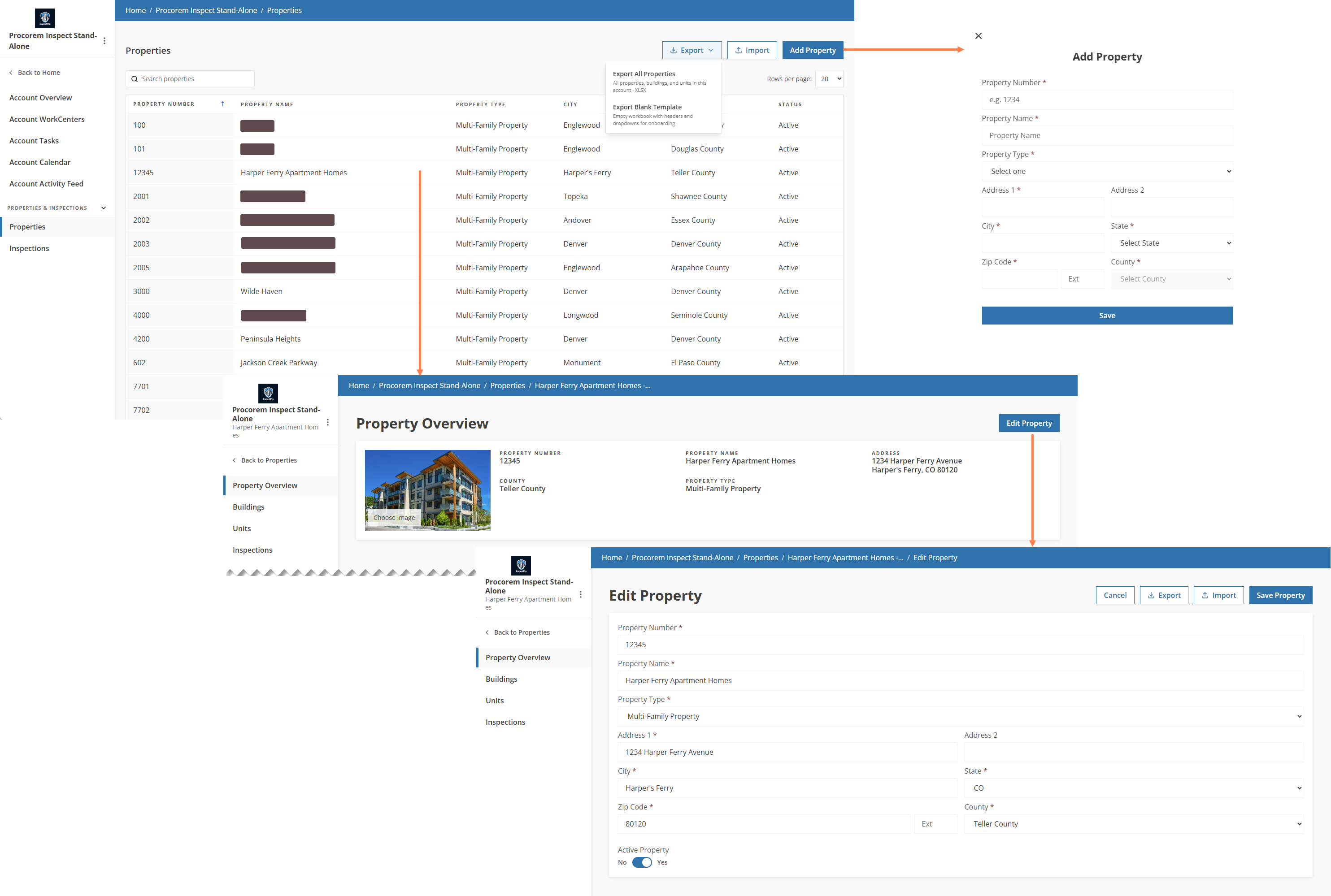
From the list, clicking a property takes you to the Property Overview page, where you'll find all key property details at a glance—including property number, name, type, address, and county—along with the ability to upload a property photo. When you need to make changes, the Edit Property page lets you update any property detail (including activating or deactivating a property) with full field validation, automatic ZIP code formatting, and duplicate property number checking.
Adding a new property is just as straightforward. The Add Property popup walks you through all required fields, validates your input as you go, and immediately navigates you to the new property's overview upon saving.
Buildings
Each property can have multiple buildings, and the new Buildings list page makes them easy to browse. Clicking a building takes you to its Building Overview page, where you'll see the building's address and type, along with a list of all units in that building.
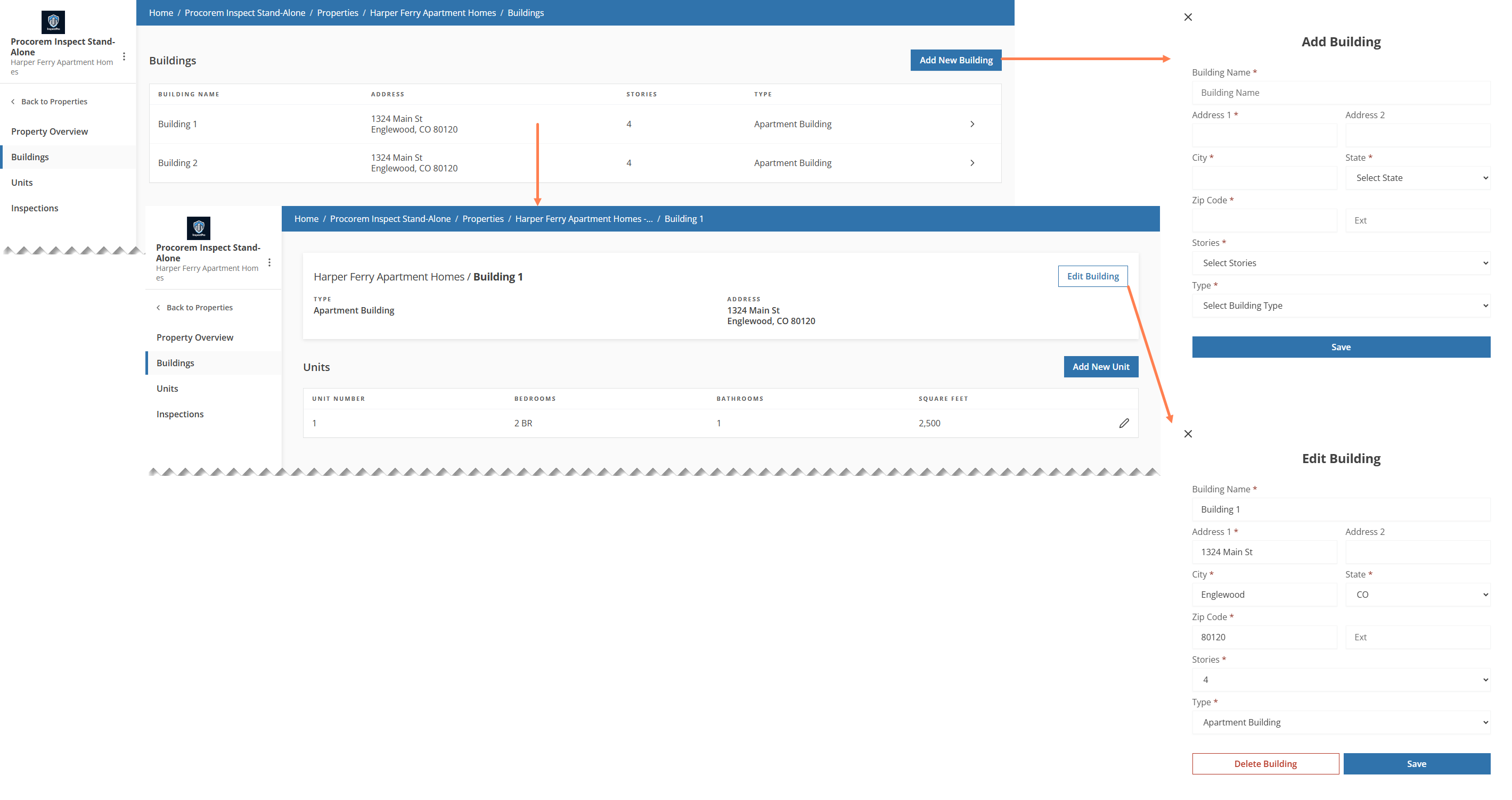
Need to make an update? The Edit Building popup lets you modify any building detail and includes a Delete Building option with a confirmation step. If the building is associated with existing units or inspection areas, a friendly message will let you know it can't be deleted until those associations are resolved. Adding a new building follows the same smooth popup experience, complete with inline validation and building type selection.
Units
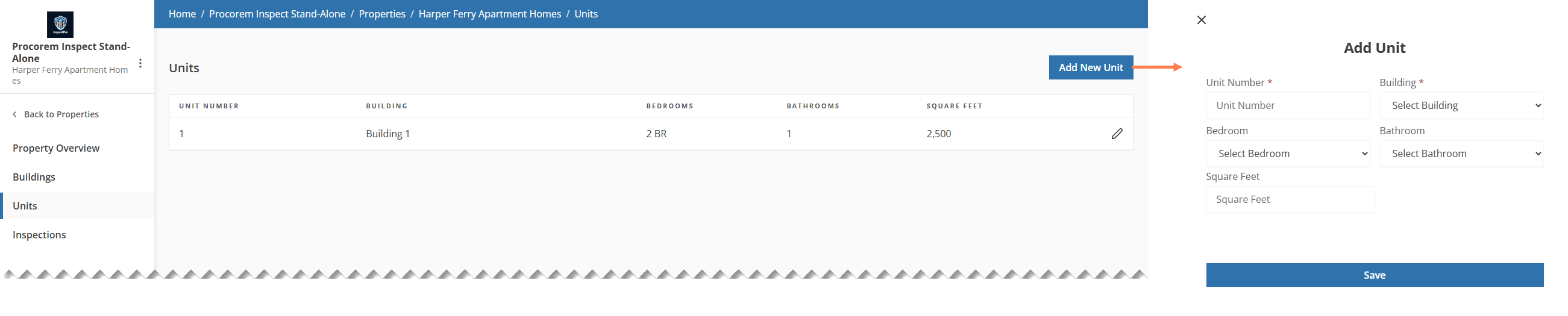
Units are managed at both the property level and the building level. The Units list page shows all units across a property, sorted by building and unit number, while the Building Overview page shows only the units for that specific building. From either view, clicking the pencil icon on a unit opens the Edit Unit popup, where you can update the unit number, building assignment, bedroom/bathroom counts, and square footage. Units can also be deleted from the Edit Unit popup, with a confirmation step and a guard that prevents deletion if the unit is linked to an inspection area.
Inspections
The heart of the module is the Inspections experience, accessible from both the account level (a cross-property view) and from within each individual property.
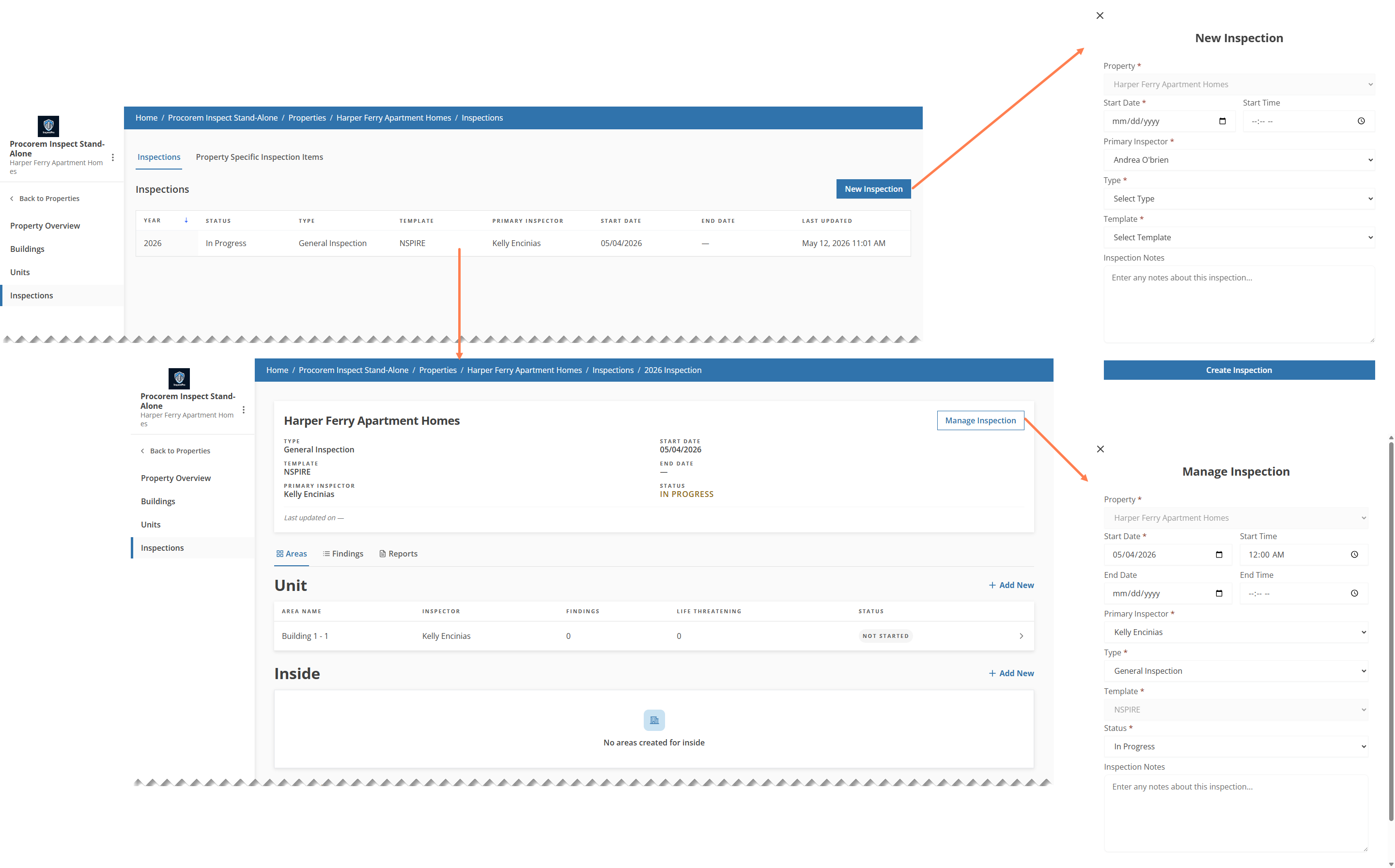
Starting an inspection is done through the New Inspection popup, which captures all the essentials: property, start date and time, primary inspector, inspection type, template, status, and notes. Once created, the Inspection Overview page becomes your central hub for managing that inspection. From there, you'll find:
An Overview card displaying inspection type, template, primary inspector, start and end dates, status, and a "last updated" timestamp indicating the last time the inspection was updated (from the mobile app or web module).
A Manage Inspection popup for updating any inspection detail, including the ability to set or clear end date/time based on status changes, and a Delete Inspection option (with cascading removal of all associated areas, findings, and photos).
A Property Specific Inspection Items tab, which allows you to identify inspection items specific to the property, in addition to the items defined in the selected template.
Areas, Findings, and Reports
Once inside an inspection, you can manage its inspection areas through the Areas tab. The Add Area popup lets you assign new building or unit areas to the inspection, while the Manage Area popup lets you update or remove an existing area assignment.
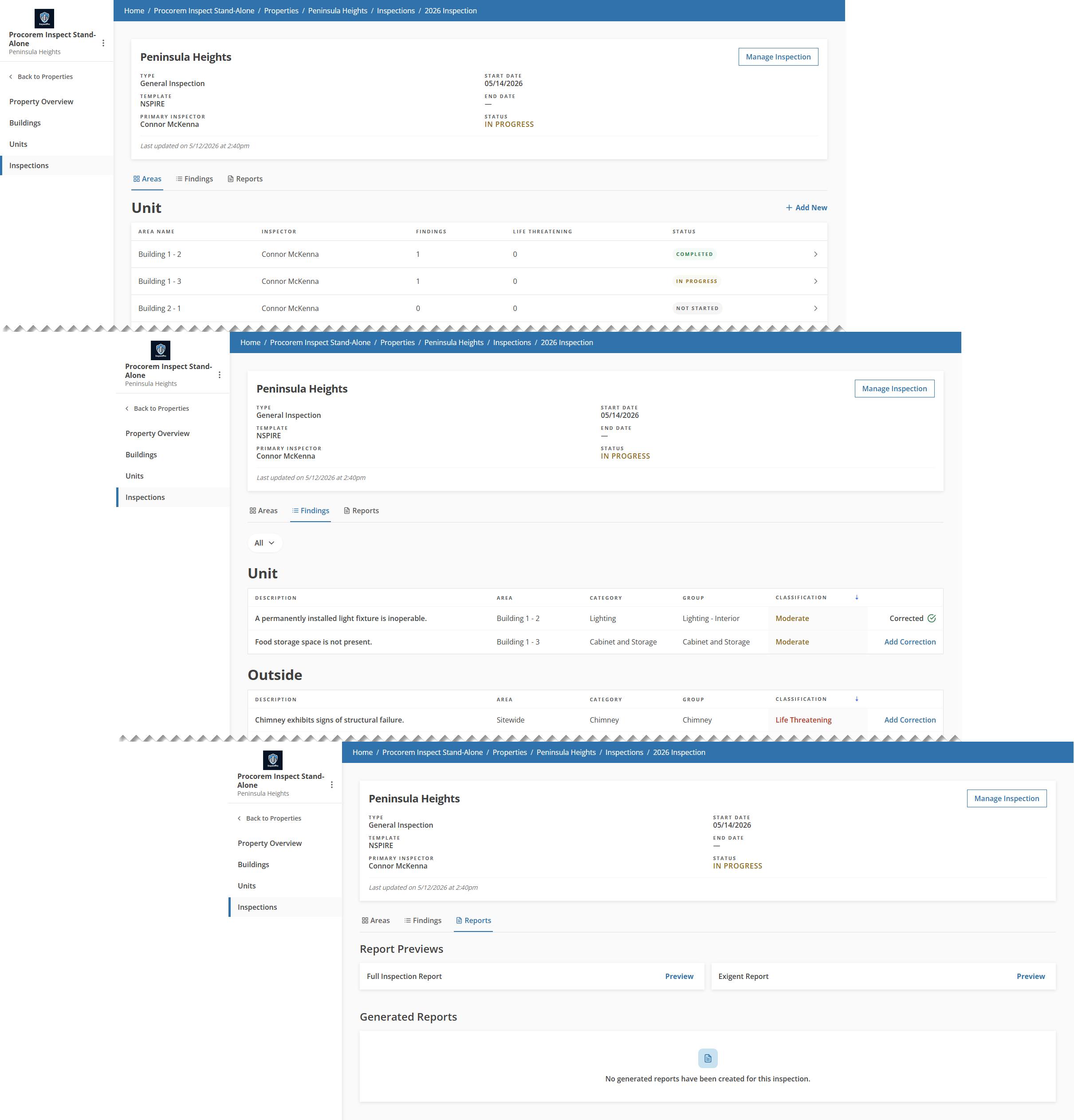
Clicking an area brings up the Area Findings page, which displays a list of all findings recorded against that building or unit during the inspection. Findings must be added from the app. Once they are uploaded, you can access the findings through the web-based user interface. Clicking a finding opens the Area Finding Details page, giving you a complete view of that finding—including its classification, location, description, correction details, notes, and photos. The Edit Finding popup allows you to update correction information and location details, or delete a finding entirely. You can also add correction information from the Findings tab.
The Reports tab on the Inspection Overview page provides access to both live report previews and finalized, generated report PDFs. Report previews are always available and reflect the current state of the inspection. Generated reports can be viewed inline or downloaded directly.
Inspection Template Administration
Account administrators now have a dedicated Admin - Inspection Templates area for managing the custom inspection templates that drive the mobile app inspection experience.
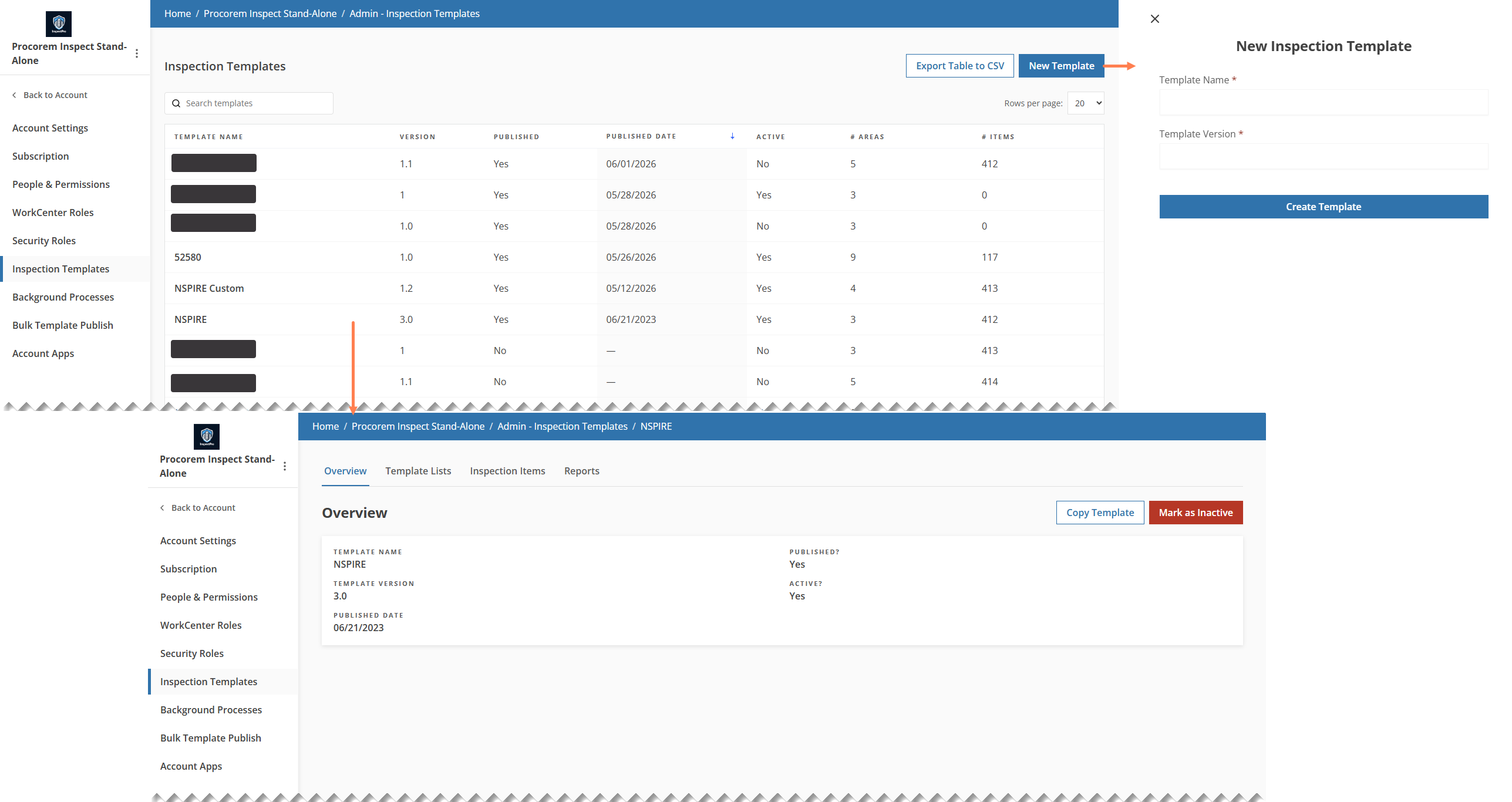
This release includes:
A Templates list page with search, sort, pagination, and CSV export.
Template configuration tabs including Template Lists (managing the structural building blocks of a template (Areas, Categories, Groups, and Classifications), Inspection Items (with XLSX export and import), and Reports (selecting which report types).
The ability to publish templates and to mark published templates as active or inactive, controlling whether they appear as options when creating new inspections.
The default NSPIRE template.
Module Entitlements And Account Roles Security
Access to Procorem Inspect pages and API endpoints is now gated by module entitlements, ensuring only users with the appropriate subscription and permissions can access Property and Inspection features.
Property Feature Permissions | Inspection Feature Permissions |
|---|---|
Create Property | Create Inspection |
Update Property | Update Inspection |
View All Properties | Delete Inspection |
Manage Buildings & Units | View All Inspections |
Export All Properties | Manage Inspection Templates |
Export Blank Template | Manage Property Specific Inspection Items |
Import Properties | |
Export Single Property | |
Import Single Property |
This release introduces the Account Roles screen, giving Account Administrators fine-grained control over what their team members can do within Procorem Inspect.
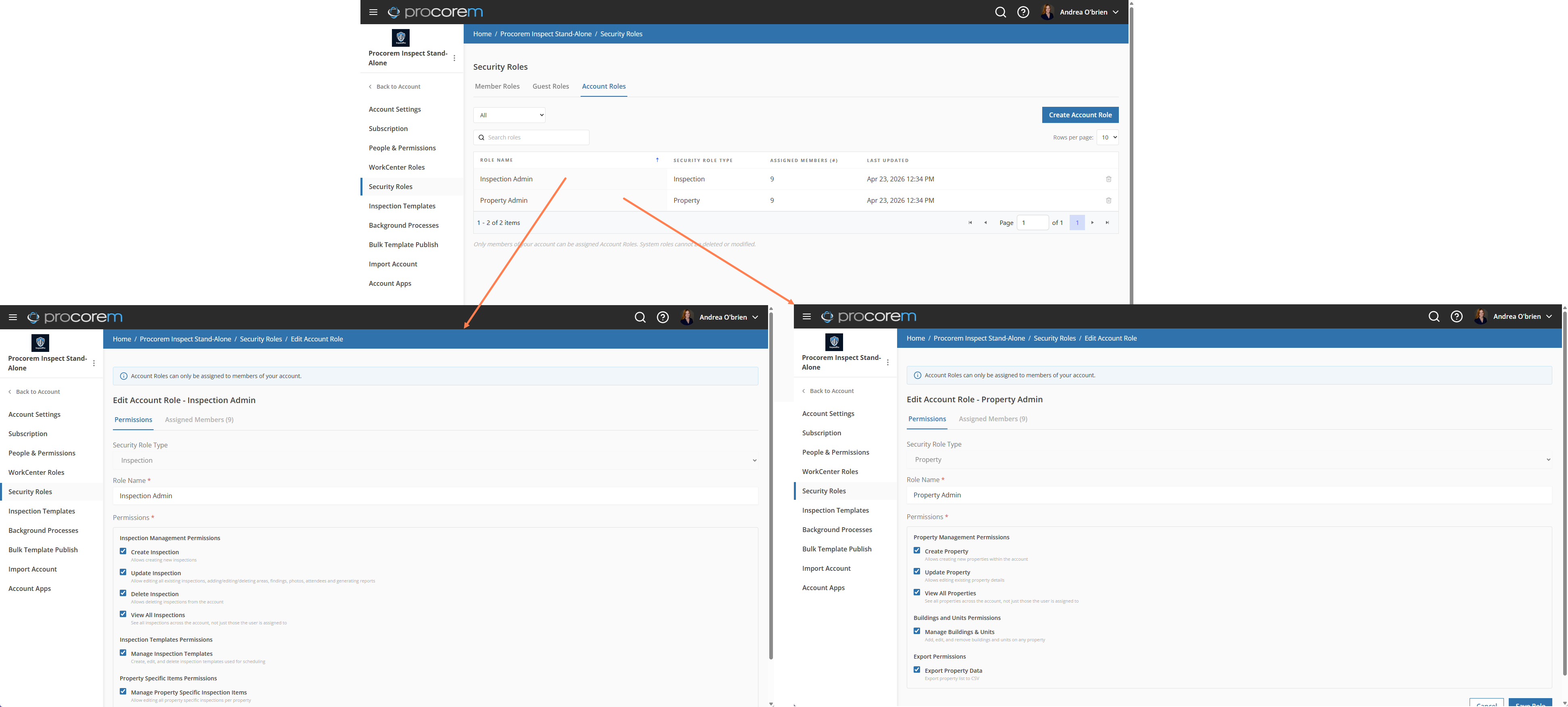
The new Security Roles page includes an Account Roles tab that will allow account administrators to:
View and manage all custom account roles in a grid.
Create new account roles.
Edit existing account roles.
Delete roles with a confirmation step.
Tickets Delivered
The release includes the following items.
ProLink fixed an issue with the app menu appearance that sometimes occurred on initial app access.