Log In to the Procorem File Explorer
The Procorem File Explorer uses your Procorem credentials. The desktop app, Excel Office Add-In, and Word Office Add-In each require logging in independently of each other.
When you are finished with the desktop File Explorer, close the window to log out. The Office Add-Ins have a Logout button in the Procorem tab.
If your session expires after a period of inactivity, sign-in reappears automatically and the program resumes afterward.
Open the Procorem File Explorer from your Start menu or desktop shortcut, or click Login on the Procorem tab in the Excel or Word Office Add-In.
The Procorem Sign-In window opens.
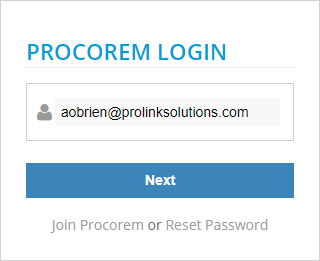
Enter your Procorem email address, and then click Next.
Enter your Procorem password, and then click Sign in.
The Procorem File Explorer opens and displays your WorkCenter folders.
If your organization uses Single Sign-On (SSO) with Procorem, the Procorem File Explorer handles authentication automatically.
Open the Procorem File Explorer from your Start menu or desktop shortcut, or click Login on the Procorem tab in the Excel or Word Office Add-In.
The Procorem Sign-In window opens.
Enter your Procorem email address, and then click Next.
If SSO is configured for your email domain, the system automatically initiates SSO login. You do not need to enter a separate Procorem password.
If two-step verification (TSV) is enabled on your Procorem profile, the app prompts you to verify your identity after you enter your password.
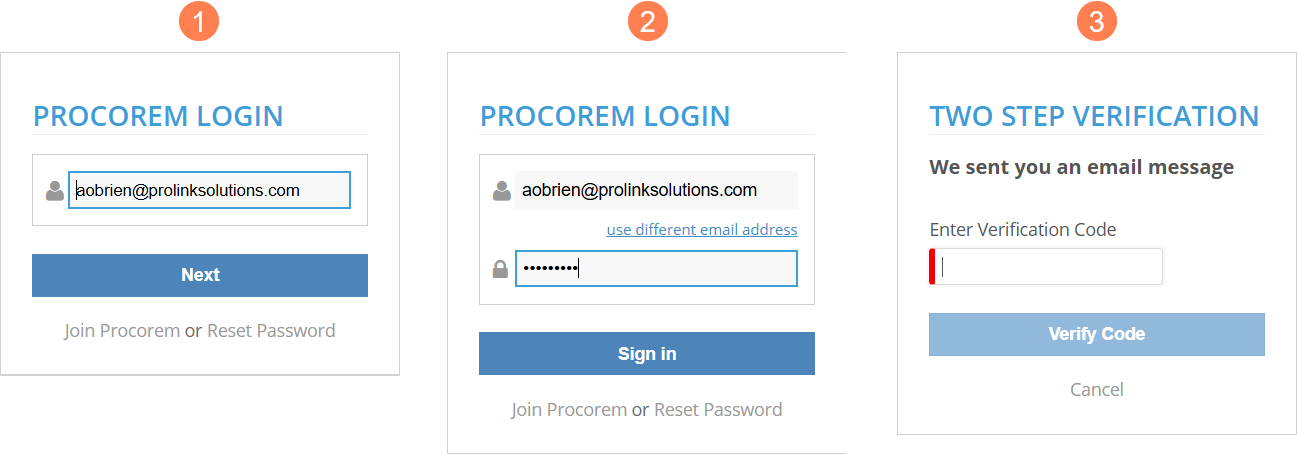
Open the Procorem File Explorer from your Start menu or desktop shortcut, or click Login on the Procorem tab in the Excel or Word Office Add-In.
The Procorem Sign-In window opens.
Enter your Procorem email address, and then click Next.
Enter your Procorem password, and then click Sign in.
A verification screen appears.
Check for a verification code sent to your preferred delivery method (email or text message).
Enter the code, and then click Verify Code.
The Procorem File Explorer opens and displays your WorkCenter folders.
For more information about TSV, see Manage Two-Step Verification.