Use the Word Add-In
The Procorem Office Add-In installs a Procorem tab in Microsoft Word, letting you open files from Procorem, edit them in Word, and publish changes back to Procorem as a new version—without opening a web browser.

Procorem tab
Login/Logout—One toggles to the other with your sign-in state.
Open—Pull a document from Procorem.
Publish—Push the current document back to Procorem.
Note
File activity performed through the Procorem Office Add-In is tracked in Procorem the same way as activity performed in the browser. Uploads and downloads appear in the WorkCenter Activity feed.
Caution
Saving a file locally does not publish it to Procorem. To save your changes to Procorem, use the Publish button in the Procorem tab before closing.
Use the Procorem tab to browse your WorkCenters and open a file directly in Word.
Click the Procorem tab.
Click Open.
The Procorem File Explorer opens.
Navigate to the WorkCenter folder that contains the file.
Click OK.
Tip
Alternatively, you can double-click the file to open it.
The file opens in Word. The add-in tracks that this file is linked to its location in Procorem.
The Publish button in the Procorem tab saves your document back to Procorem as a new version. What happens when you click Publish depends on whether the file already exists in Procorem and how it was opened.
When you open a file from Procorem through the add-in and publish it without renaming it, the add-in uploads it directly as a new version.
In the Procorem tab, click Publish and confirm. The file uploads to Procorem as a new version.
Note
If you have not yet saved the file locally when you click Publish, the add-in automatically saves it.
When you publish a file that has not previously been saved to Procorem, the add-in opens the file browser so you can choose a destination.
Click Publish.
The Procorem File Explorer opens.
Navigate to the WorkCenter folder where you want to save the file.
Click OK.
The file uploads to the selected WorkCenter folder.
Note
If the file has never been saved, a Save As window appears. Complete the local save before the publish continues.
Note
If you select a WorkCenter folder that already contains a file with the same name, the file saves as a new version of that existing file.
When you open a file from Procorem, rename it, and then publish it, the add-in asks you to confirm where to save the file.
Click Publish.
A confirmation popup opens: "This file will be saved in [WorkCenter Name\Folder Name\File Name] as version [N]. Do you wish to proceed?"
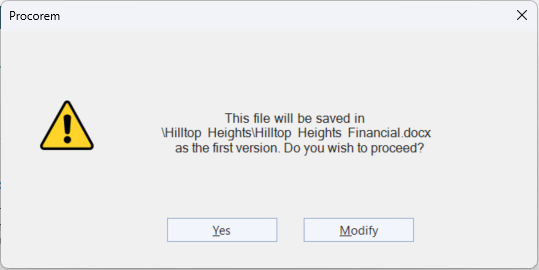
Do one of the following:
Click Yes to publish the file with the name and location as noted in the popup.
Click Modify to open the File Explorer and select a different location or name.
Click X to close the dialog without publishing. No changes are made.
If you open a file locally that you previously uploaded or downloaded through the Procorem File Explorer, the add-in remembers the Procorem connection and uploads it directly as a new version when you publish.
When you close a Word file that is linked to Procorem, a message checks if you want to publish the file before closing it.
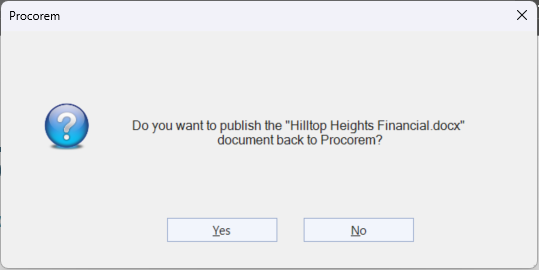
Click Yes to publish the file to Procorem.
Click No to close without publishing.
Click X to close without publishing.