Getting Around Procorem
The Procorem navigation experience streamlines project and document collaboration in a single application. By integrating top-level views with the ability to drill into individual projects and activities you can find important project information you need on any level.
Procorem provides you a variety of views and navigation options designed to provide insight into project activity on multiple levels. Procorem navigation is divided into a number of areas to help you get to the information you want to see.
Home Page
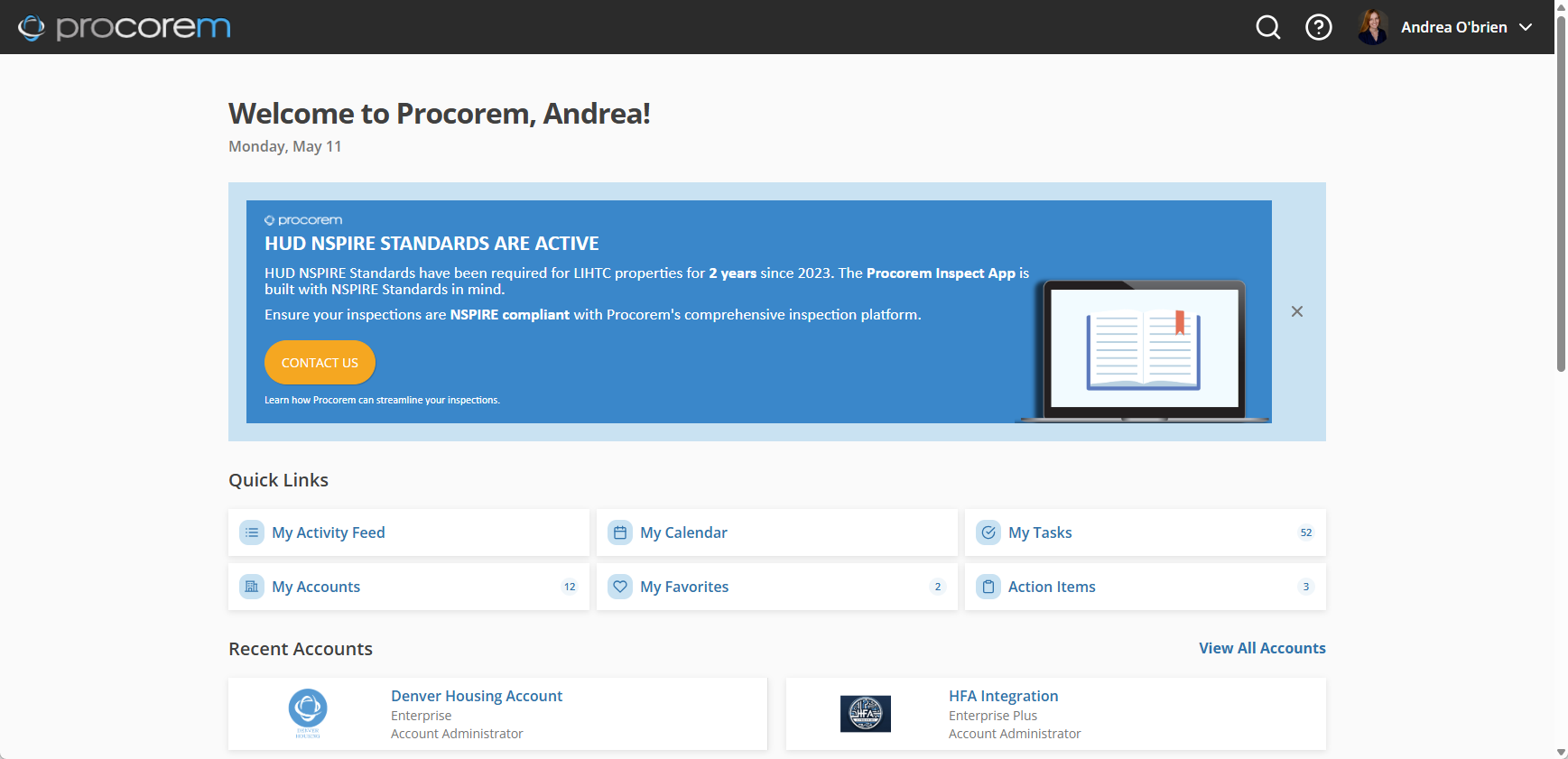
The home page is your first stop, where you can quickly access recent accounts and WorkCenters. In addition, the home page includes Quick Links to recent activity; views for your calendar, tasks, and account(s); favorite WorkCenters, and action items.
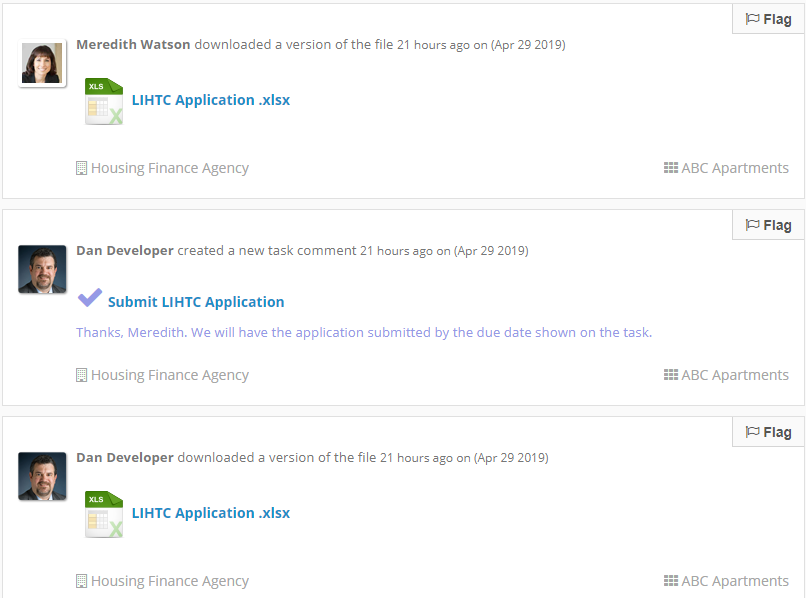
My Activity Feed
Visit My Activity Feed to see up to 30 of the most recent activities that have taken place in Procorem across all your accounts. You can set the time filter to 3 months, 6 months, or 1 year.
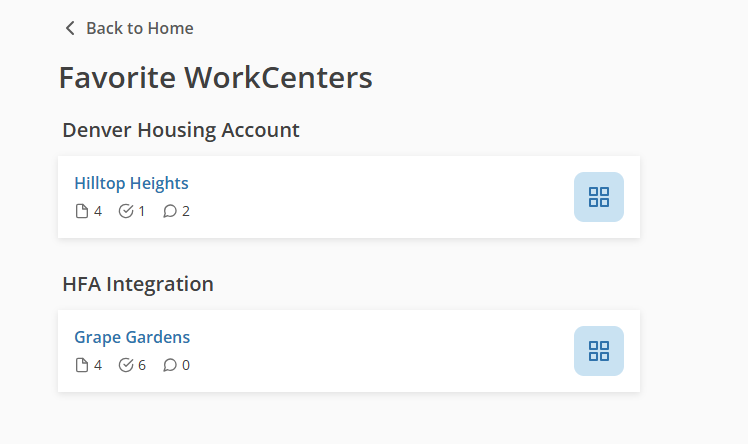
My Favorites
The My Favorites link takes you to a list of your favorite WorkCenters.
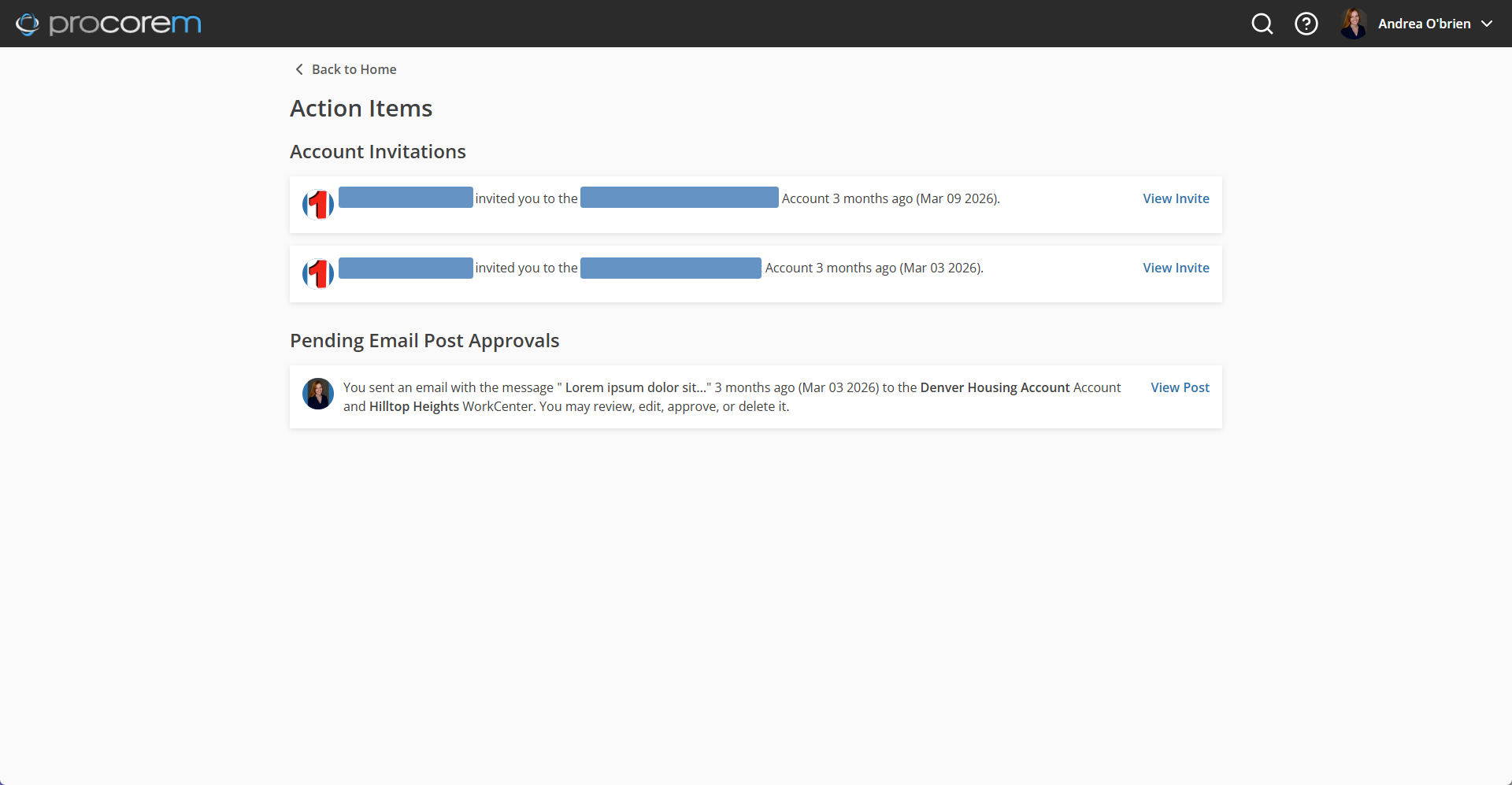
Action Items
Accessible from the home page, the Action Items page shows any items that require your approval, such as account invitations that have not been accepted and emails that require approval.
Account View
To manage data and settings for an entire account, the primary Account Overview is the best place to look. You can navigate to this page from the Breadcrumbs, the Account Logo, and through the account links on the home page.
Once on the Account Overview, you can see all the WorkCenters, Tasks, Calendar, and Activity from all the WorkCenters you have access to under that Account.
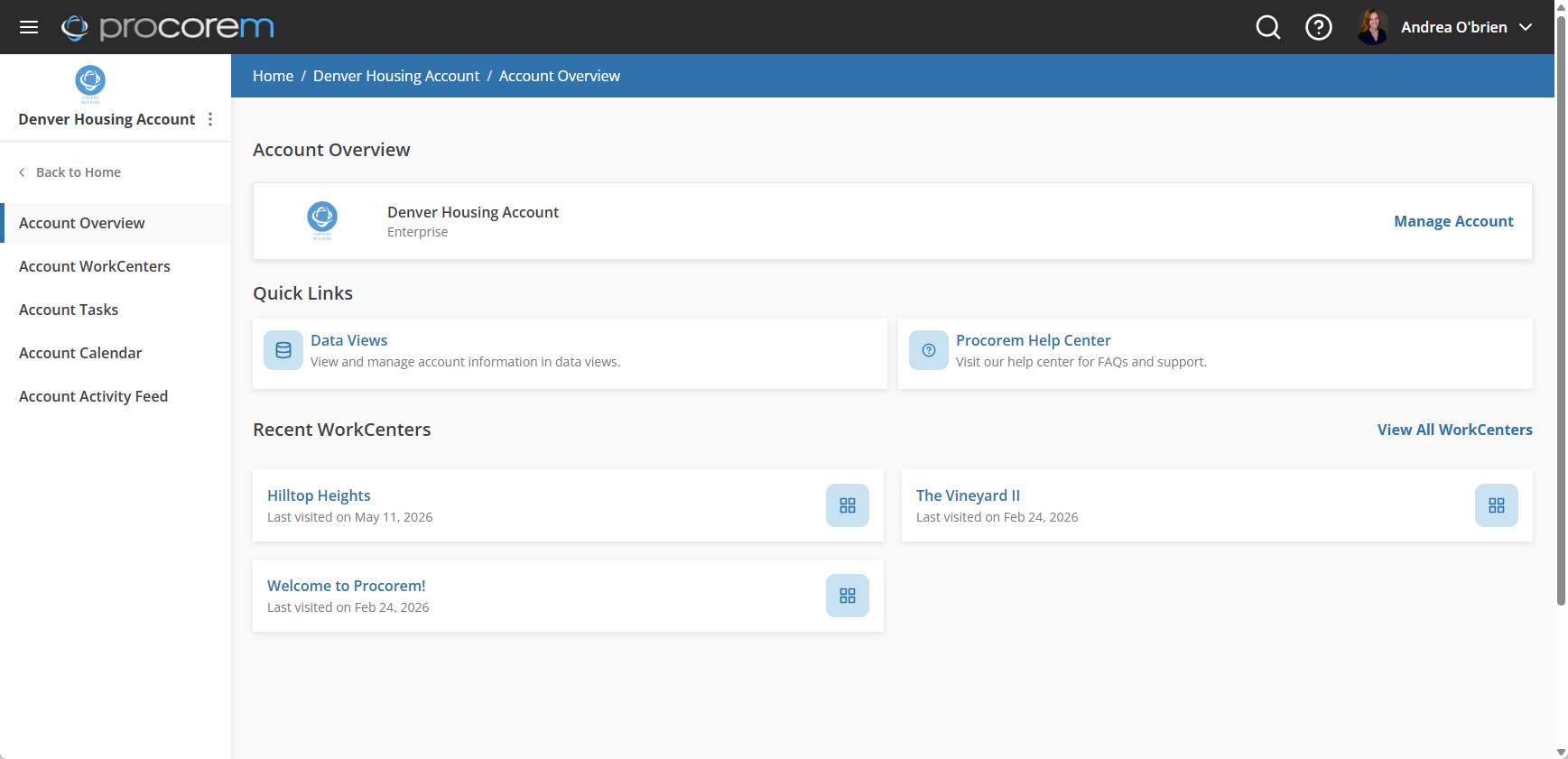
If you have Account Administrator rights, you will also be able to control a number of key settings by clicking the Manage Account link. From here you can navigate to:
Navigation Panel
The Navigation Panel is a primary navigation tool of Procorem. With the navigation panel, you can quickly navigate through account and WorkCenter contents.
Depending on which area you are in within the application, the left navigation panel will change a bit. Selections in the left navigation menu will always help you further navigate and take actions in whichever area you are in within Procorem.
WorkCenter Navigation
As you enter a WorkCenter, the left navigation menu allows you to navigate between the WorkCenter's Files, Posts, Tasks, Calendar, and WorkCenter Activity. For those with appropriate WorkCenter security rights, you can access the WorkCenter Settings as well. The left navigation will also display any Apps available for your WorkCenter. Finally, you have the option to “Favorite” a WorkCenter here as well as find more information about your unique WorkCenter email ID.
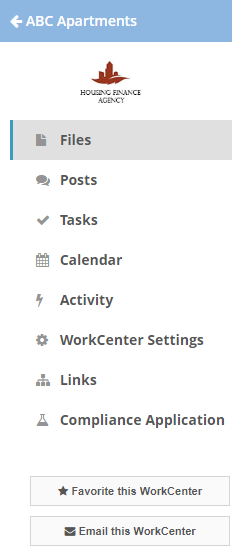
Account Navigation
Once you are in the primary Account area, the left navigation menu changes. Here you will see the WorkCenters, Tasks, Calendar, and Activity for the WorkCenters you have access to under that Account.
This menu is a great place to gain a view across multiple projects at the same time. To learn more about the capabilities of this section, take a look at the Account Introduction Help Center article.
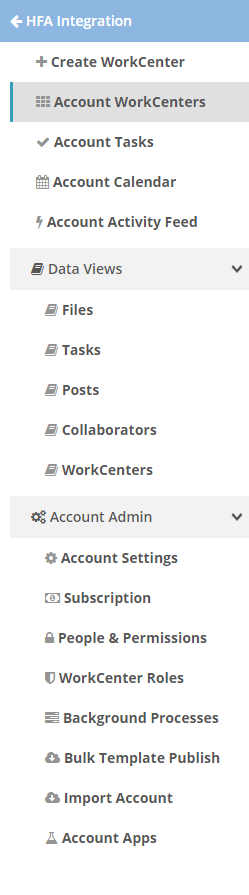
Account Admin Navigation
From the Account Overview, click Manage Account to access the Account Settings. The left navigation panel will provide access to admin functionality such as Subscription information, Members and Guests administration, Background Processes, and more.
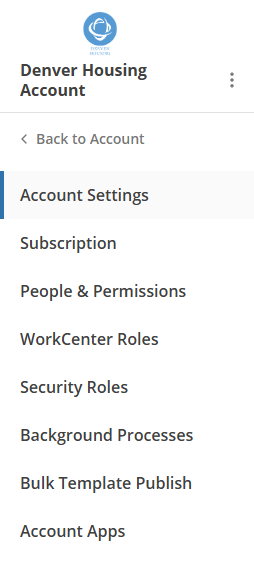
Data View Navigation
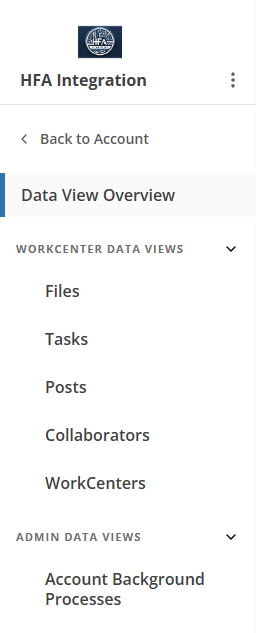
In addition, from the Account Overview, you can access the Data View Overview page. The left navigation panel links to the various WorkCenter and Admin data views, which allow you to search, manage, and report on Files, Tasks, Posts, Collaborators, WorkCenters, and Background Processes across the account.
Search
Searching is one of the quickest ways to find the information you need. Procorem's search will easily locate WorkCenters, Files, Tasks, and Posts. Depending on where you are in the application, the search bar will search that area. If you are on the home page, quickly search all of Procorem. If you are looking for a document in a specific WorkCenter, head to that WorkCenter and search from there. The search is always located in the upper right part of the Procorem page.

Breadcrumbs
Procorem breadcrumbs are designed to give you an easily way to navigate to previous sections of the application. As you progress from an account, to WorkCenter and into specific tasks, documents, or posts, the breadcrumbs can always guide you back home. Simply click on the area of the breadcrumb you want to navigate to and Procorem will take you there. You will always find the breadcrumbs near the top of the page.
